
Project & source materials
Bring your documents and media into the project. Use metadata to organize cases and compare groups.

Code interviews, analyze documents and compare cases in your browser. Byleron QDA combines qualitative coding, thematic analysis tools, research memos and optional AI assistance in one workspace.
Work manually, or bring in optional AI assistance when it helps.
Organize your sources, develop codes, and move between evidence and analysis without losing context.

Bring your documents and media into the project. Use metadata to organize cases and compare groups.
Read or play your source in the main area. Keep codes beside the content, with direct access to editing and linked memos.
Code transcript passages, audio intervals and visual selections as distinct forms of evidence, using a shared project codebook.
Explore patterns in the Analysis views. Bring selected analytical outputs and evidence into Results Builder when you are ready to write.
Move between close reading, comparison and writing without treating each as a separate project.
Select any screenshot to enlarge it.
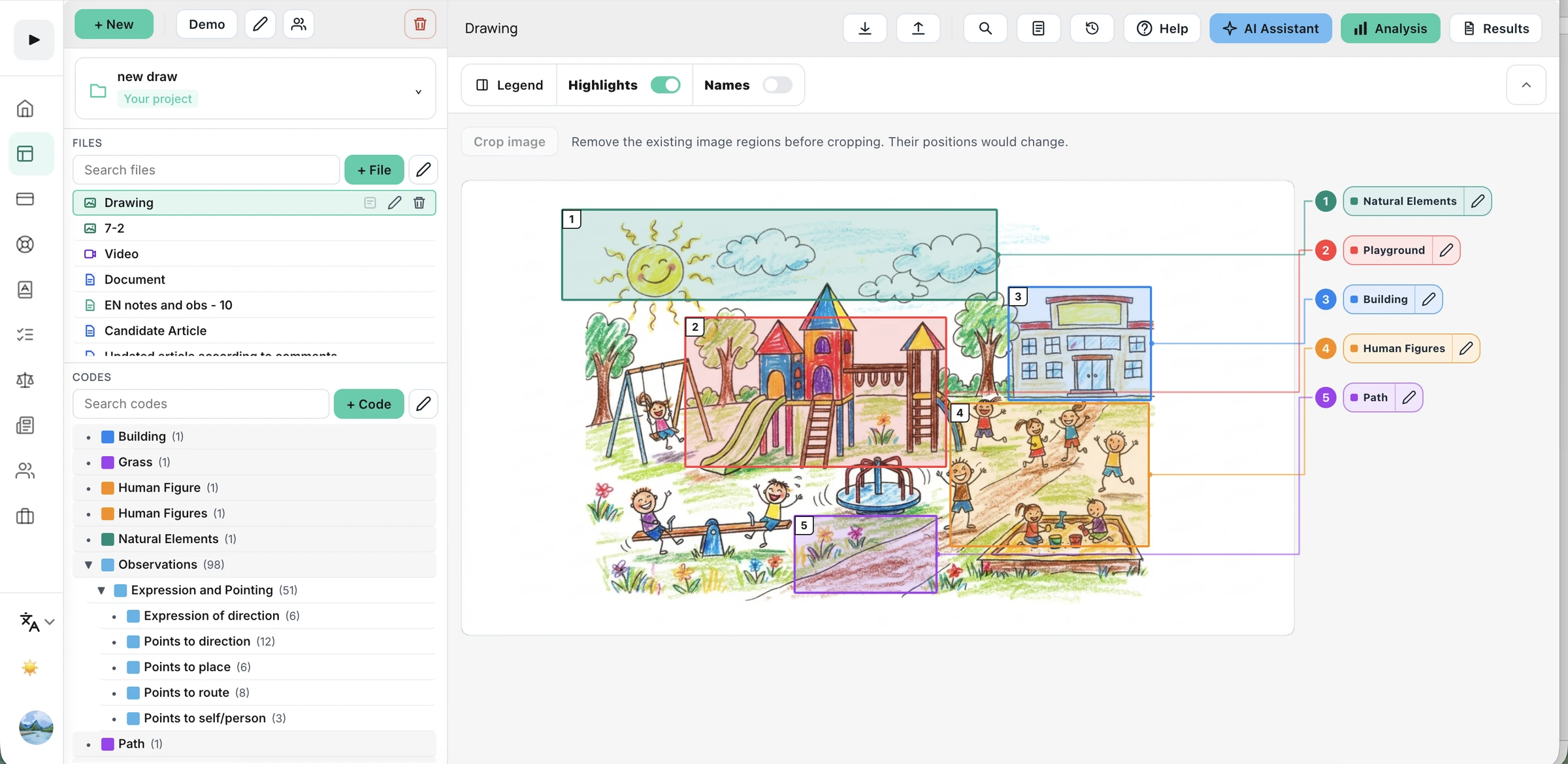
Code text passages, image and PDF regions, audio time ranges, video frames and visual time ranges. Use linked memos to develop your interpretation alongside the source.
Compare code distributions across documents and metadata groups. Explore co-occurrence, coverage, segment length and clustering to ask more focused questions of your material.
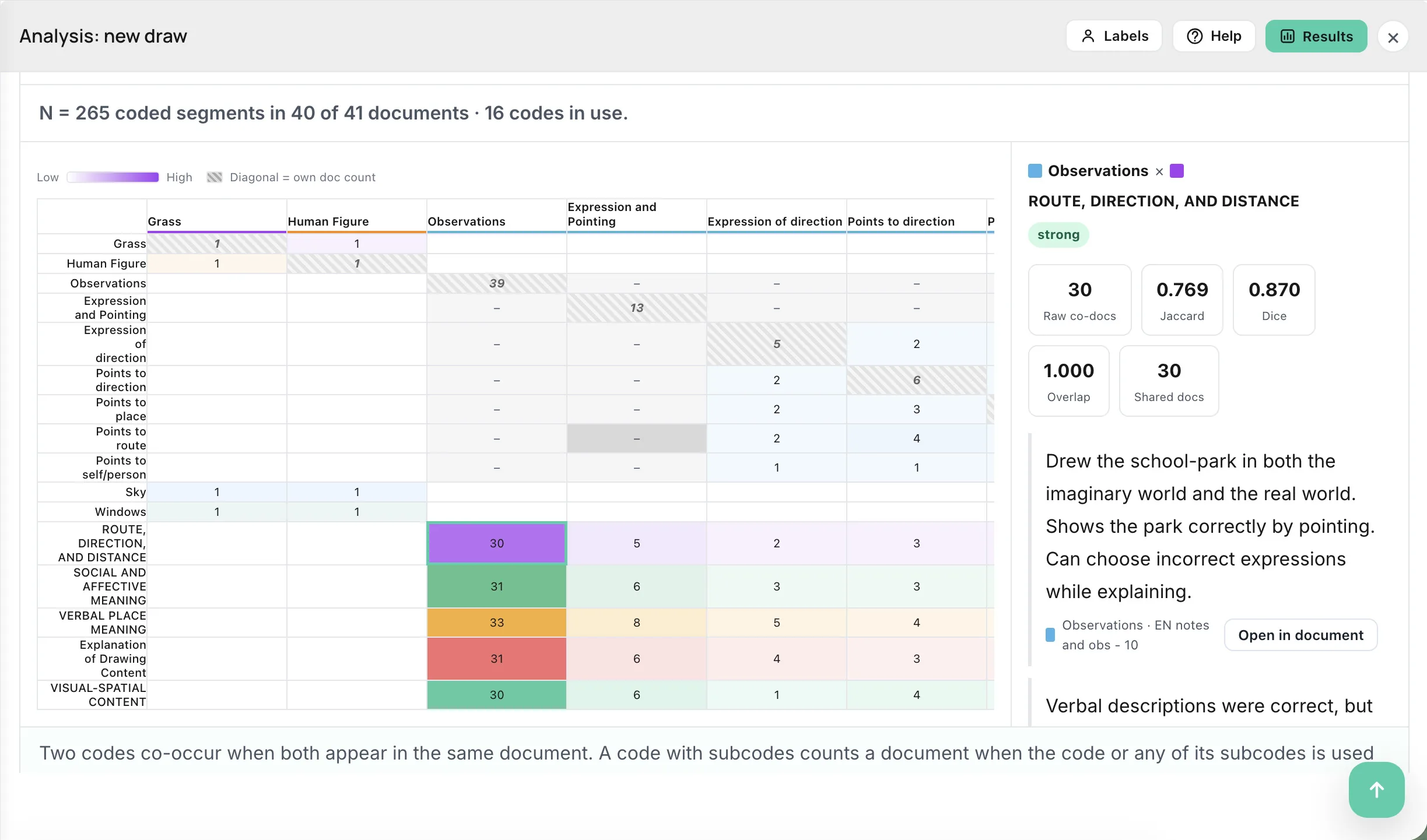
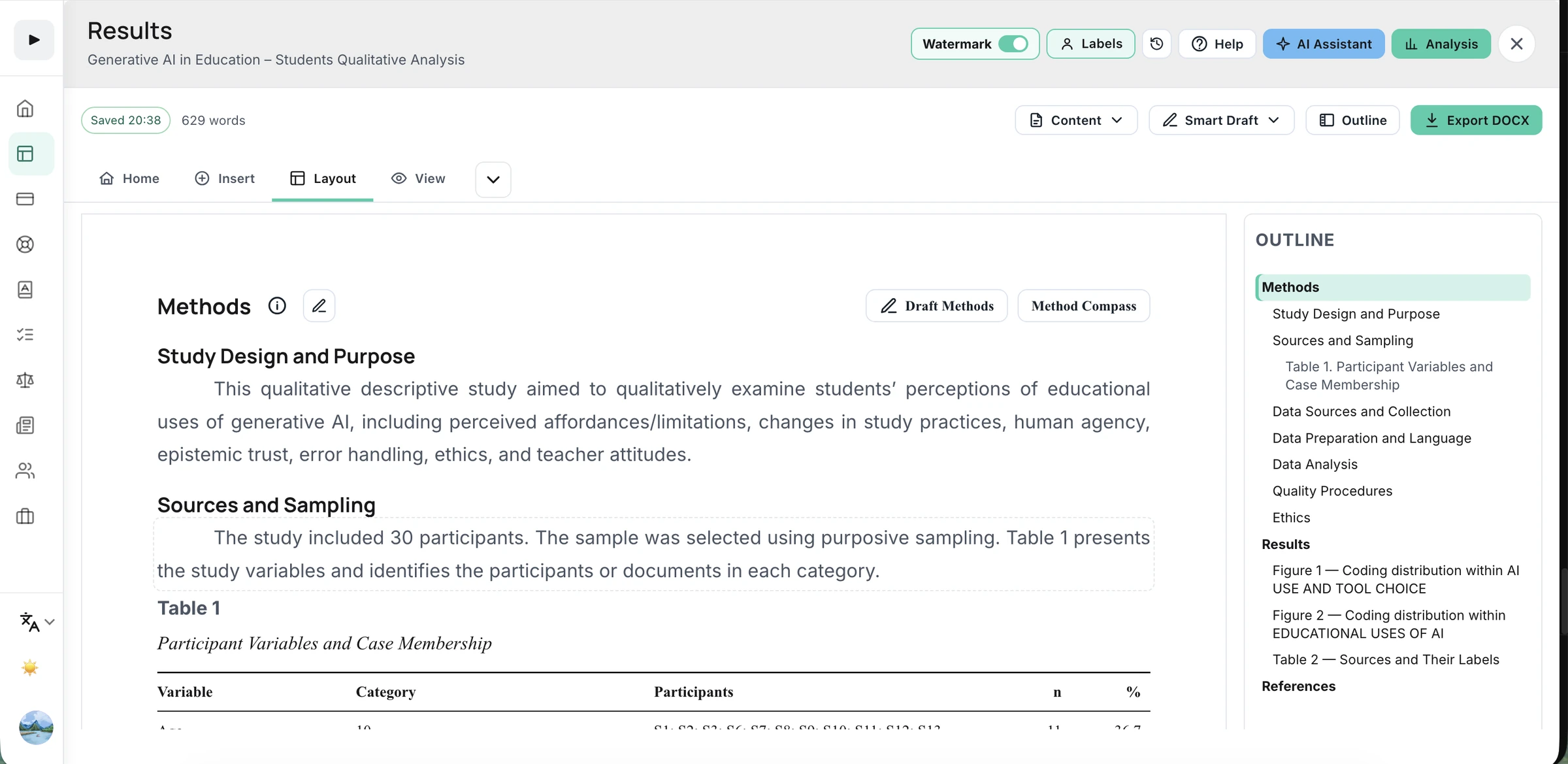
Bring selected evidence, tables and figures into Results Builder. Write your interpretation, organize the document and export it to Word.
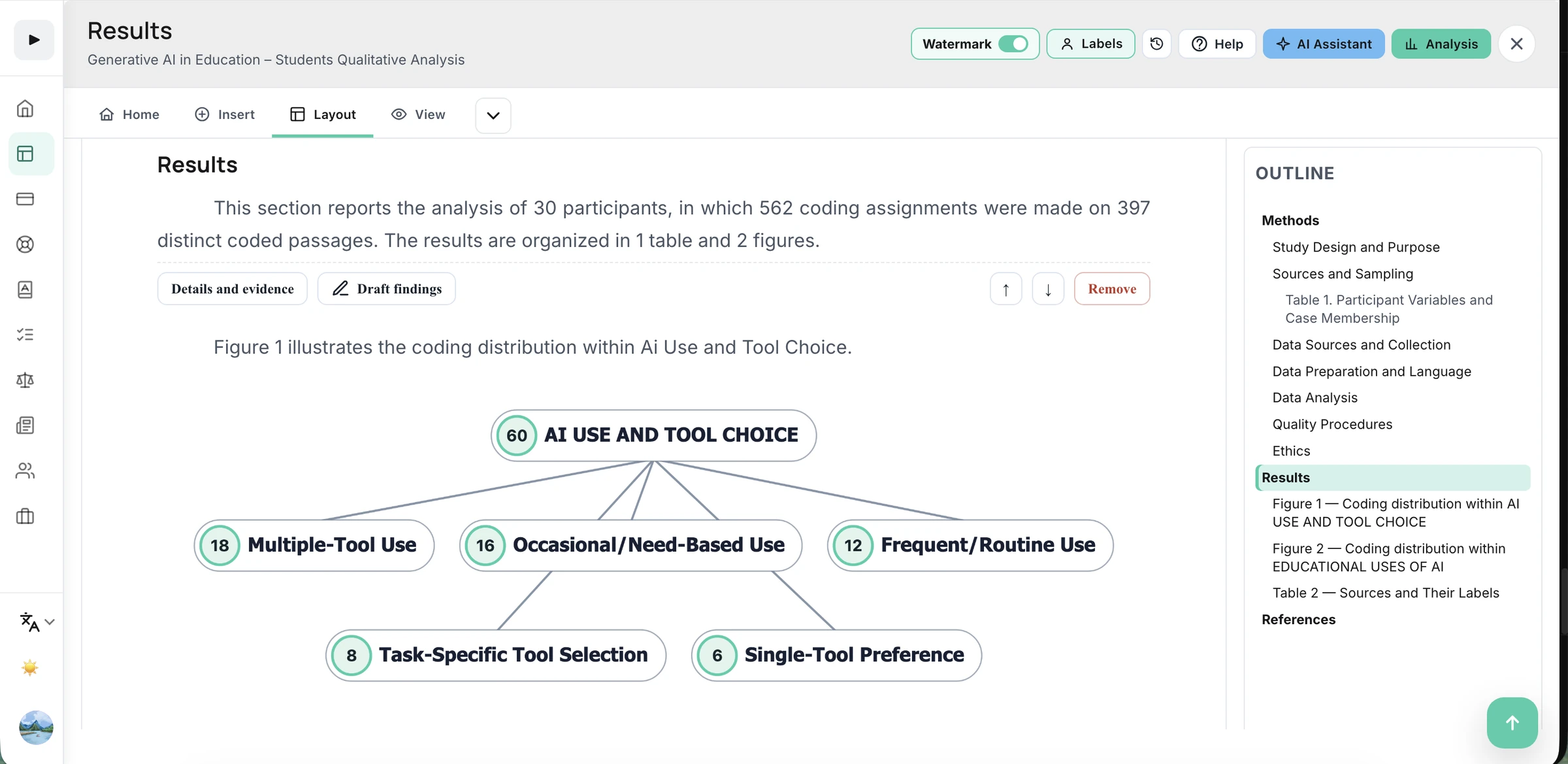
Smart Draft brings your recorded study details and project statistics into an editable Methods draft. Review the account, add any missing procedures and keep the wording faithful to your study.
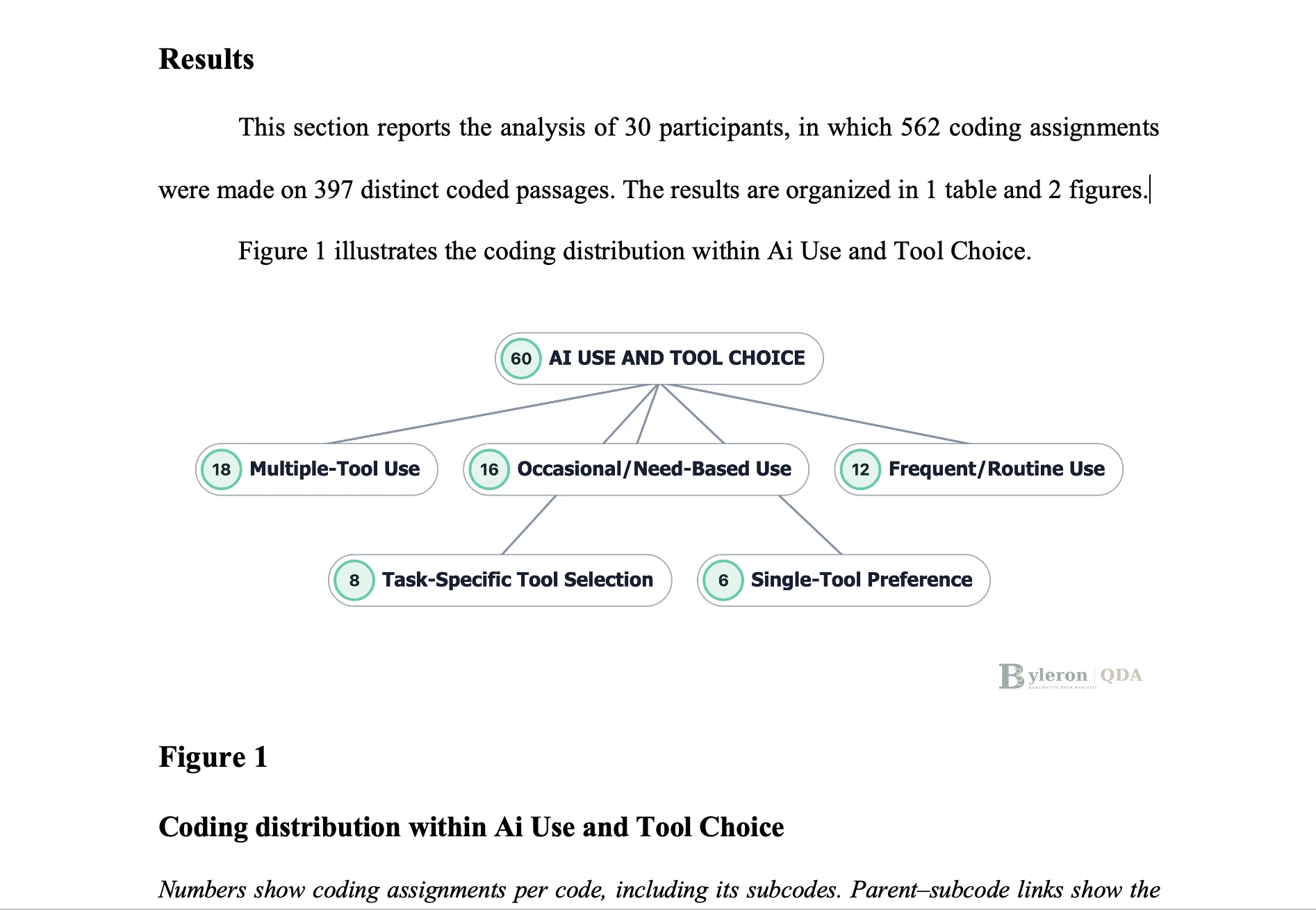
Download your Results Builder document as a DOCX file and continue editing in Microsoft Word. Keep your analytical figures, captions and findings together in an editable report.
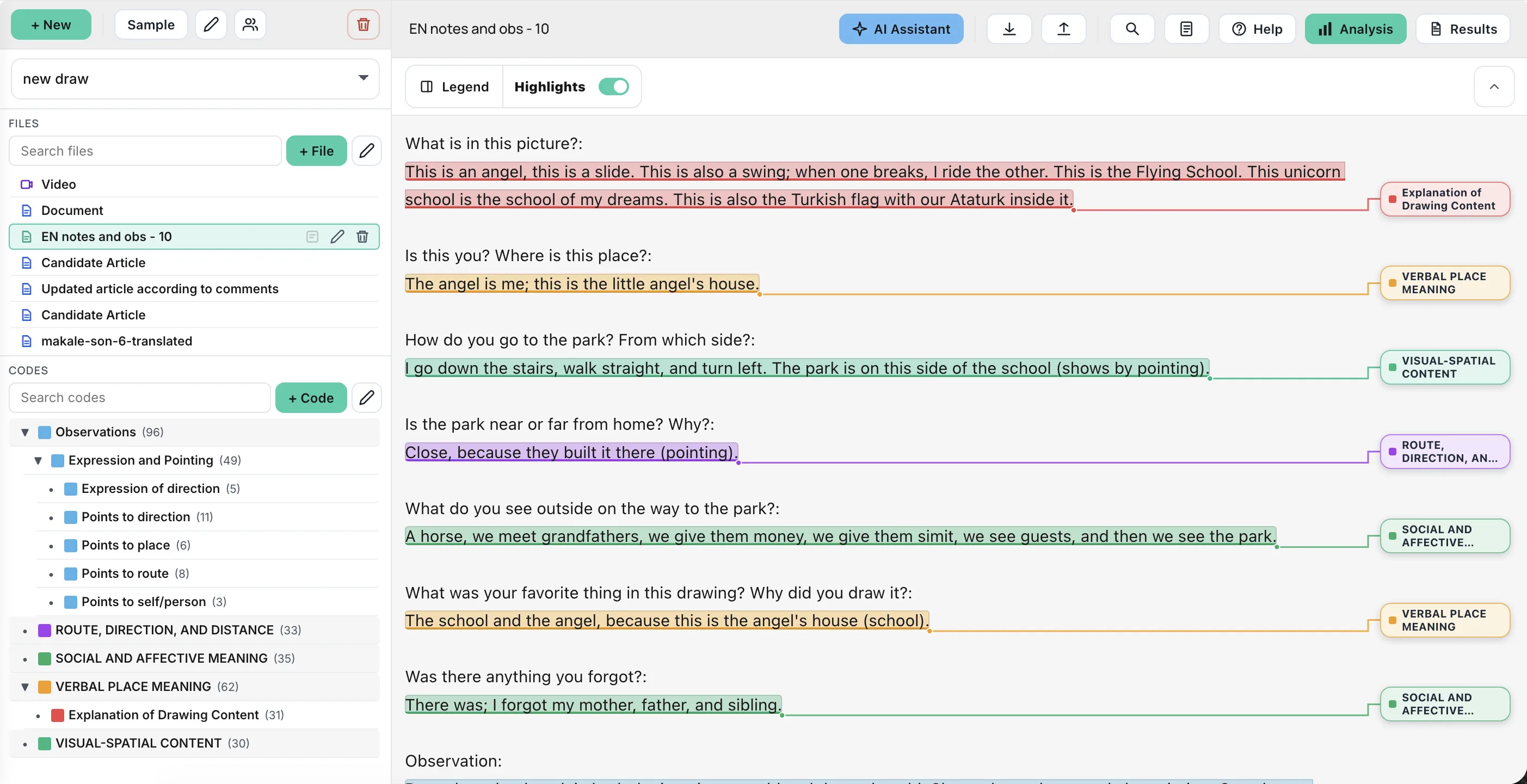
Give each kind of evidence the selection tools it needs, while keeping the same codebook and memo workflow.
Paste text or import a text file. Select passages, assign codes and attach memos while keeping the original wording in view.
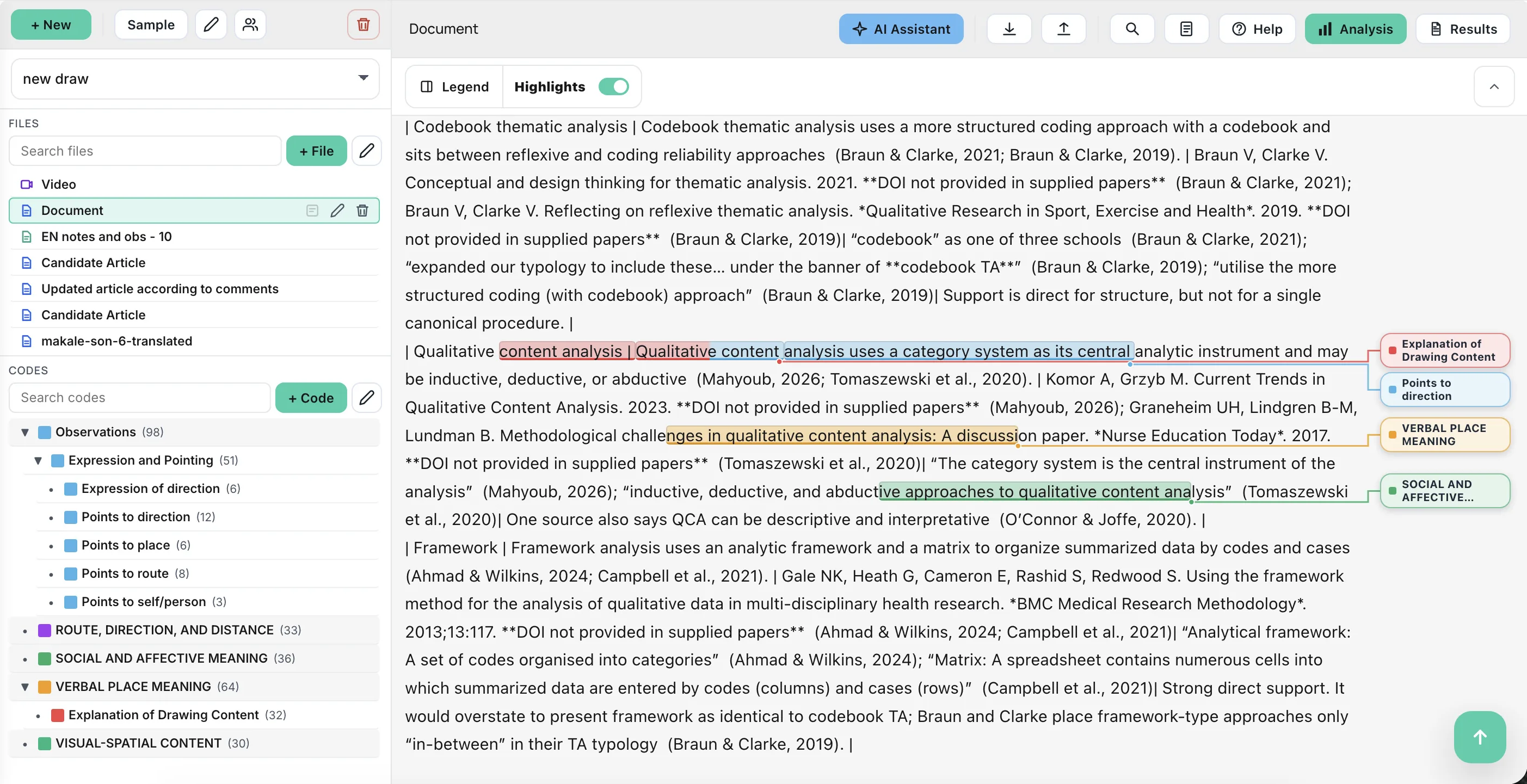
Import DOCX material and code its text alongside the other sources in your project.
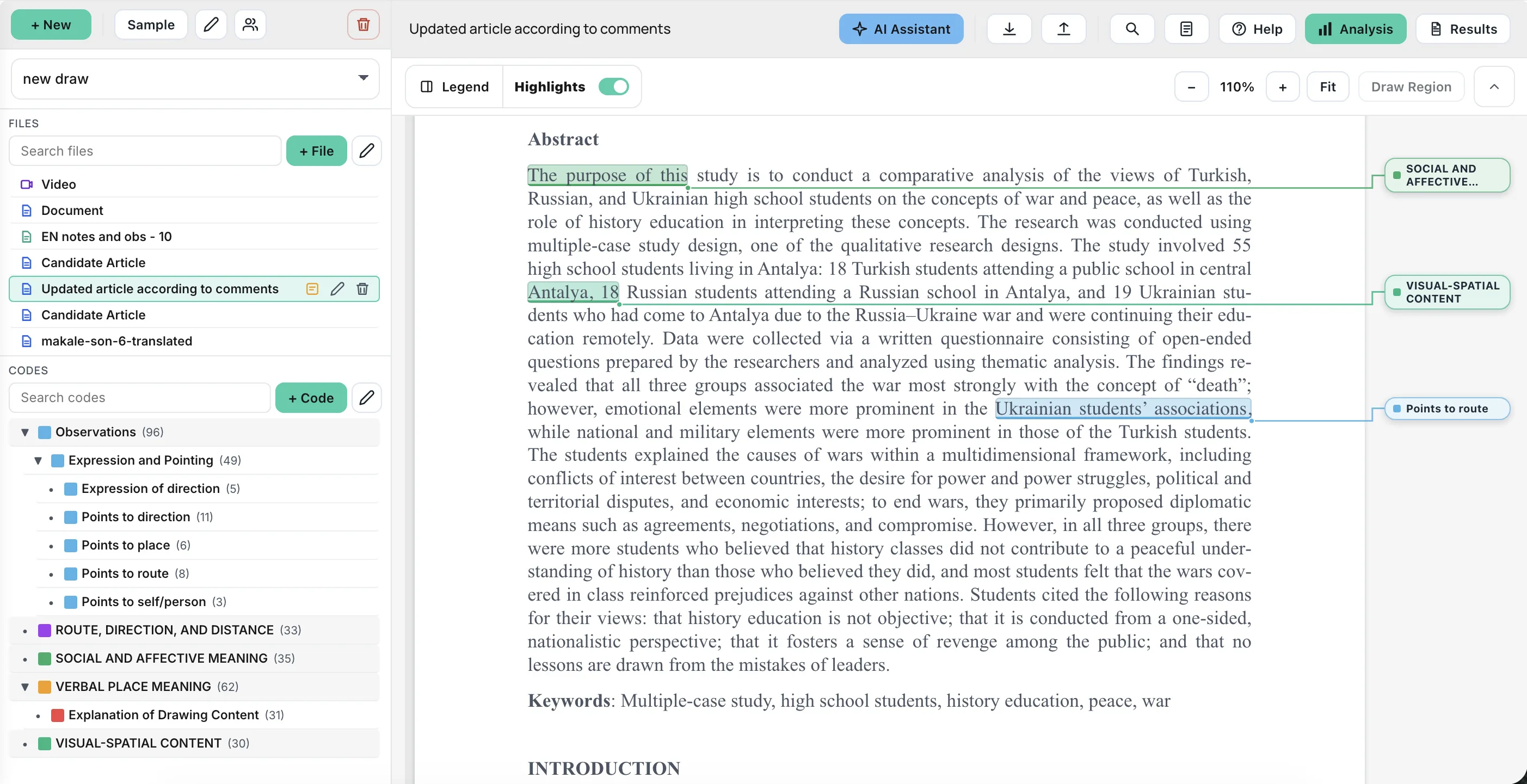
Import Excel (.xlsx) research material into the project and use it alongside documents and media.
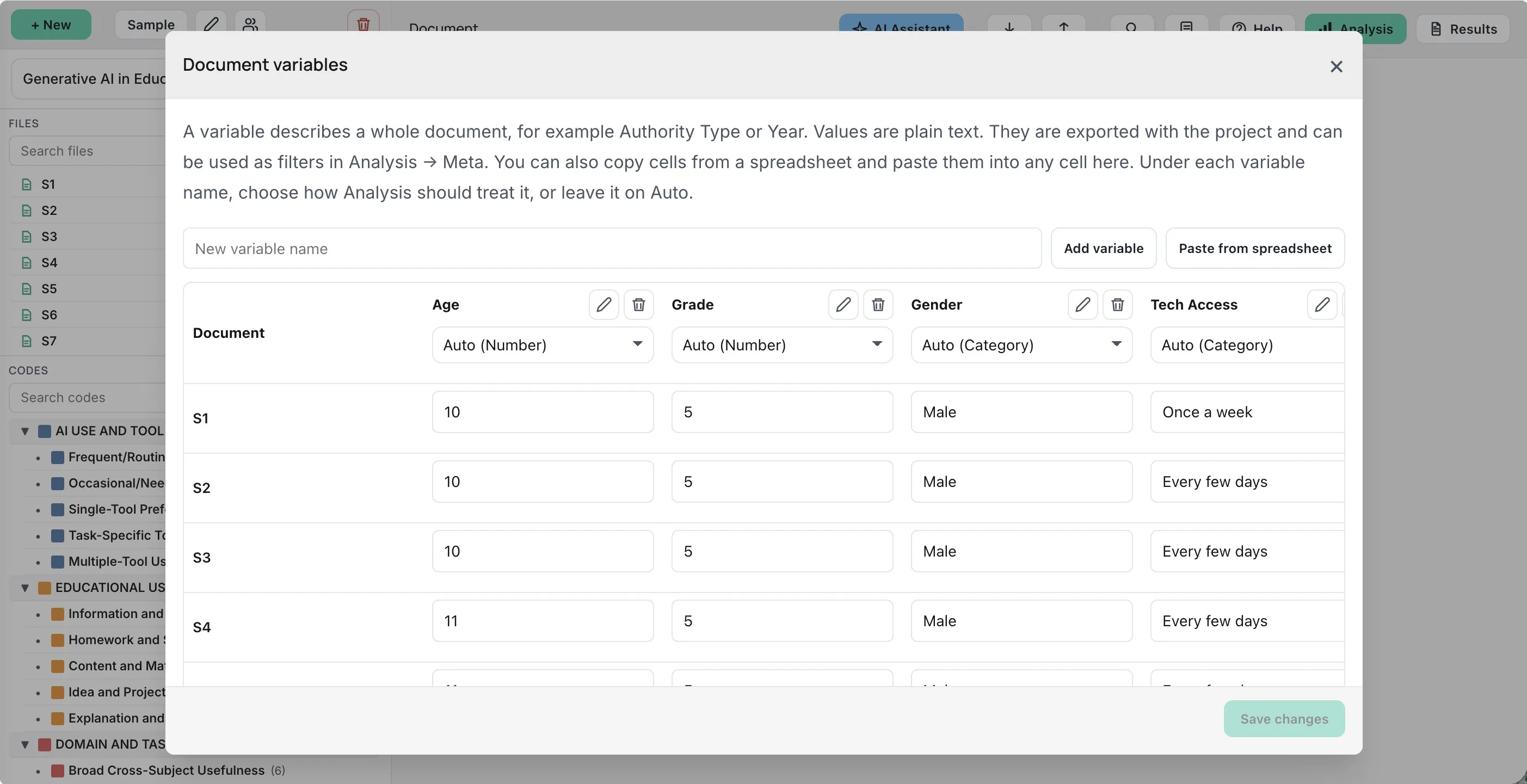
Document variables also support pasting values from a spreadsheet for case and group comparisons.
Select regions in images and PDF pages. Keep visual details connected to named codes and linked memos.
Use the waveform to select sound ranges. Zoom, replay and adjust the timing before coding a segment.
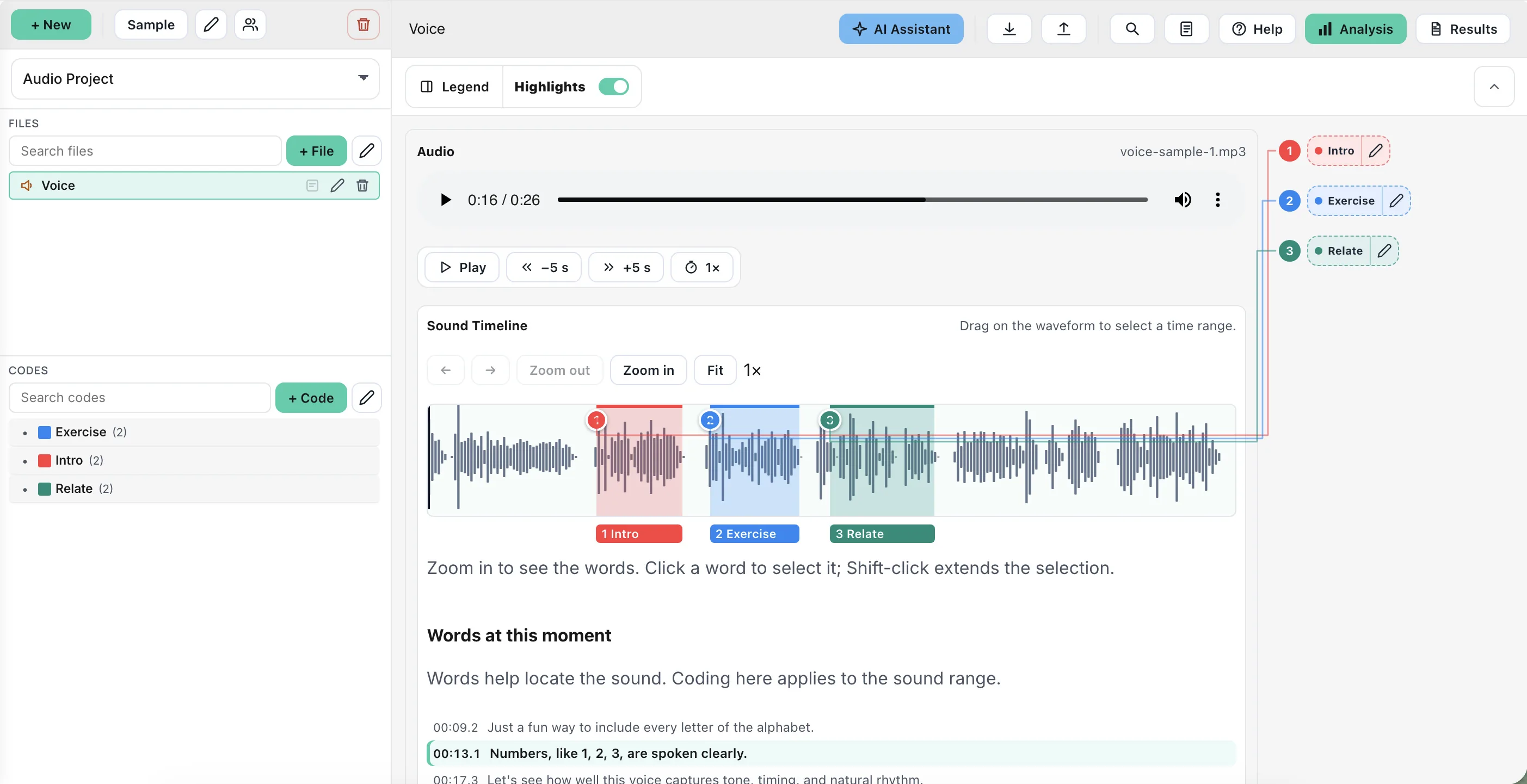
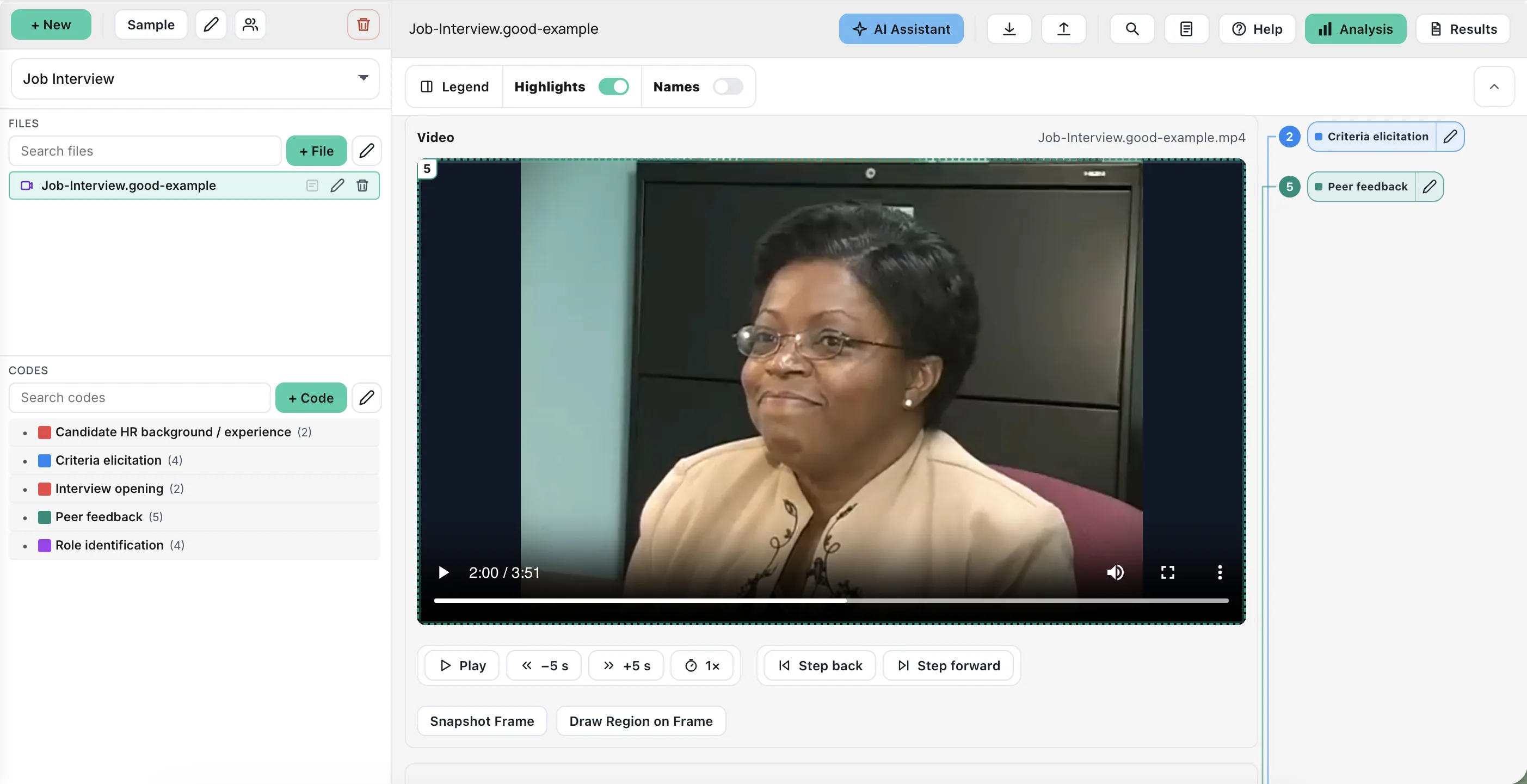
Use the visual timeline for video ranges and the sound timeline for audio. Capture a frame or select a region within it.
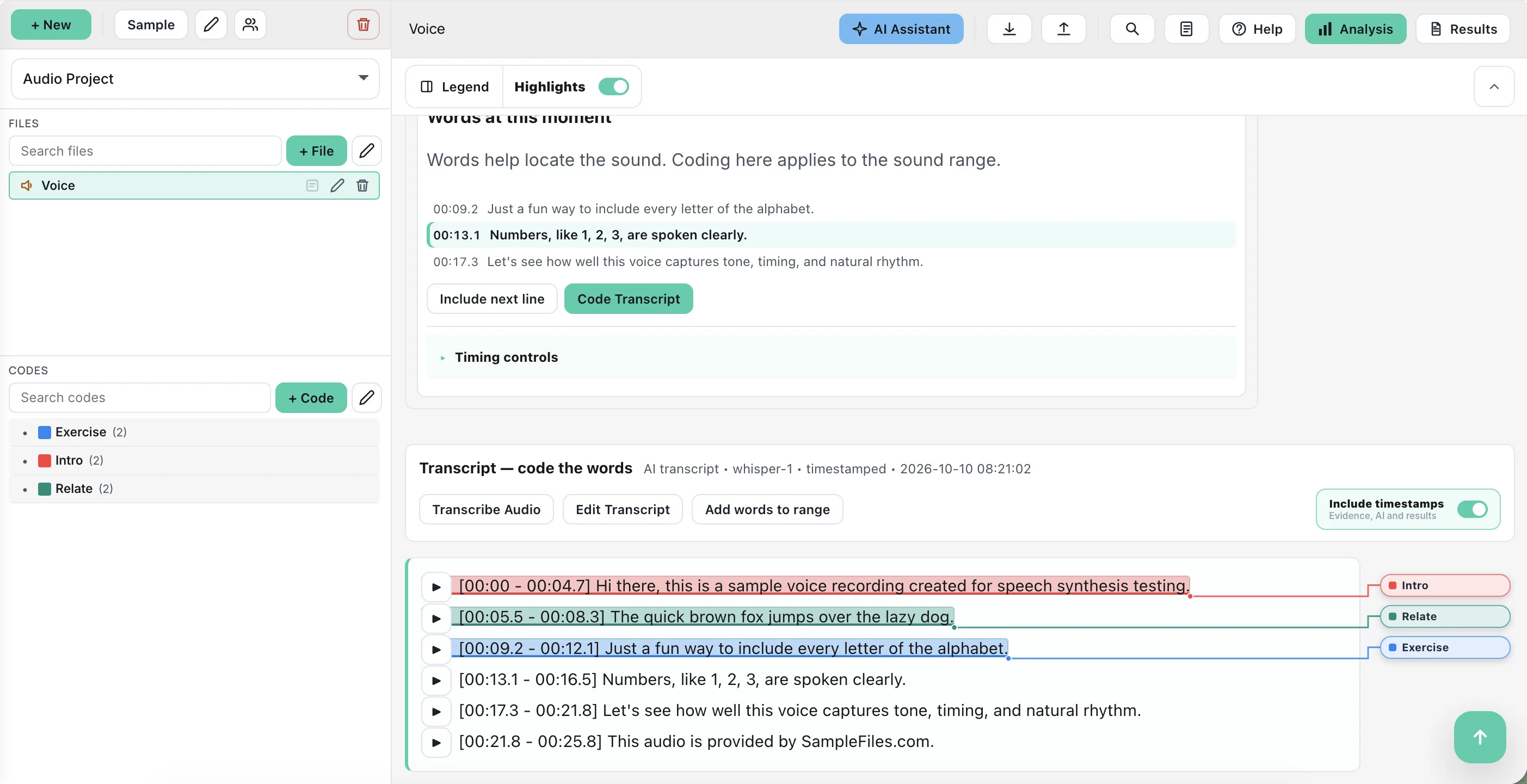
Generate and edit a transcript, include timestamps, and assign speakers to timed lines. Code the words alongside the recording.
Keep definitions, decisions and emerging interpretations beside the coding they explain.
Create codes and subcodes, edit labels, merge overlapping codes and organize your hierarchy as the analysis develops.
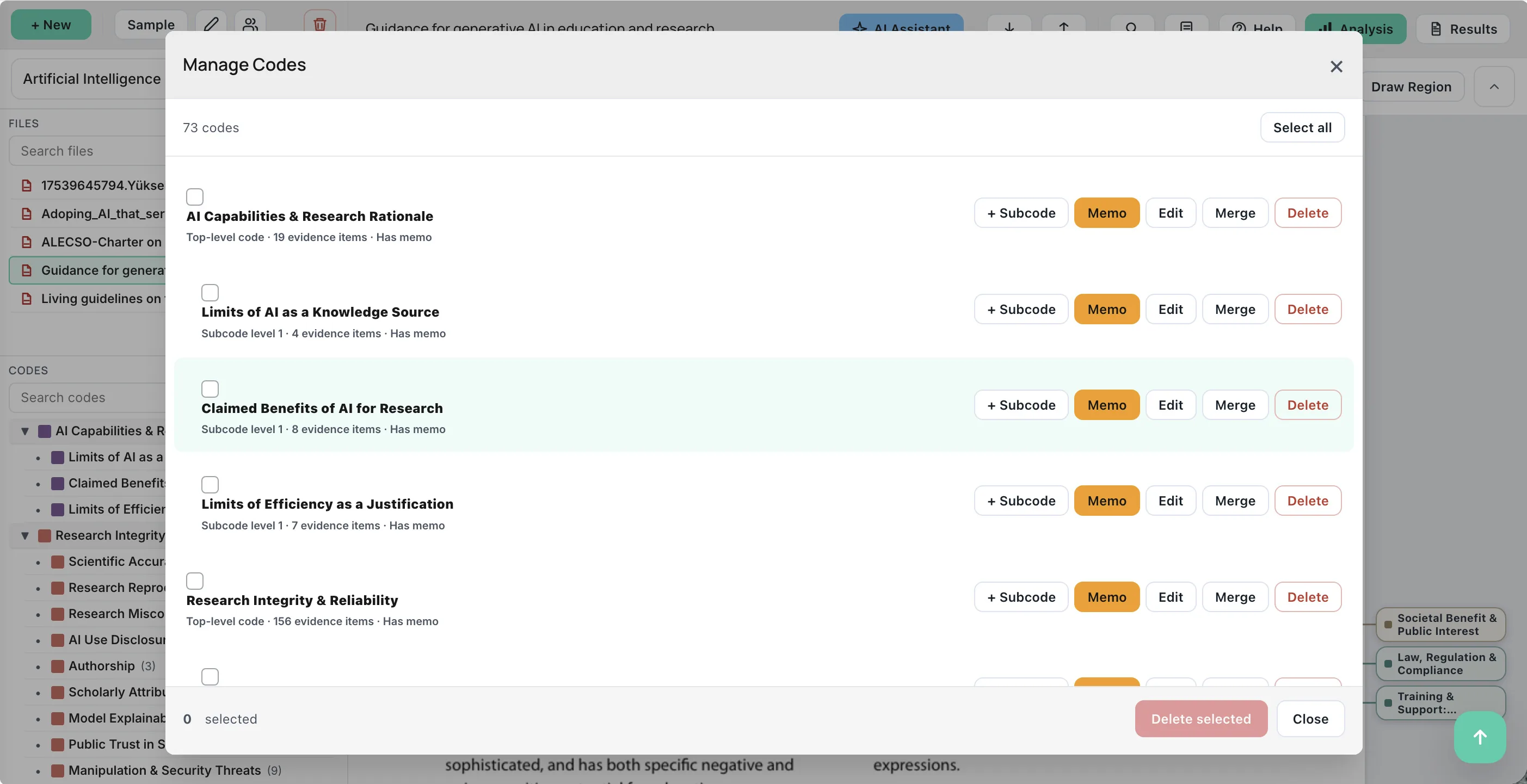
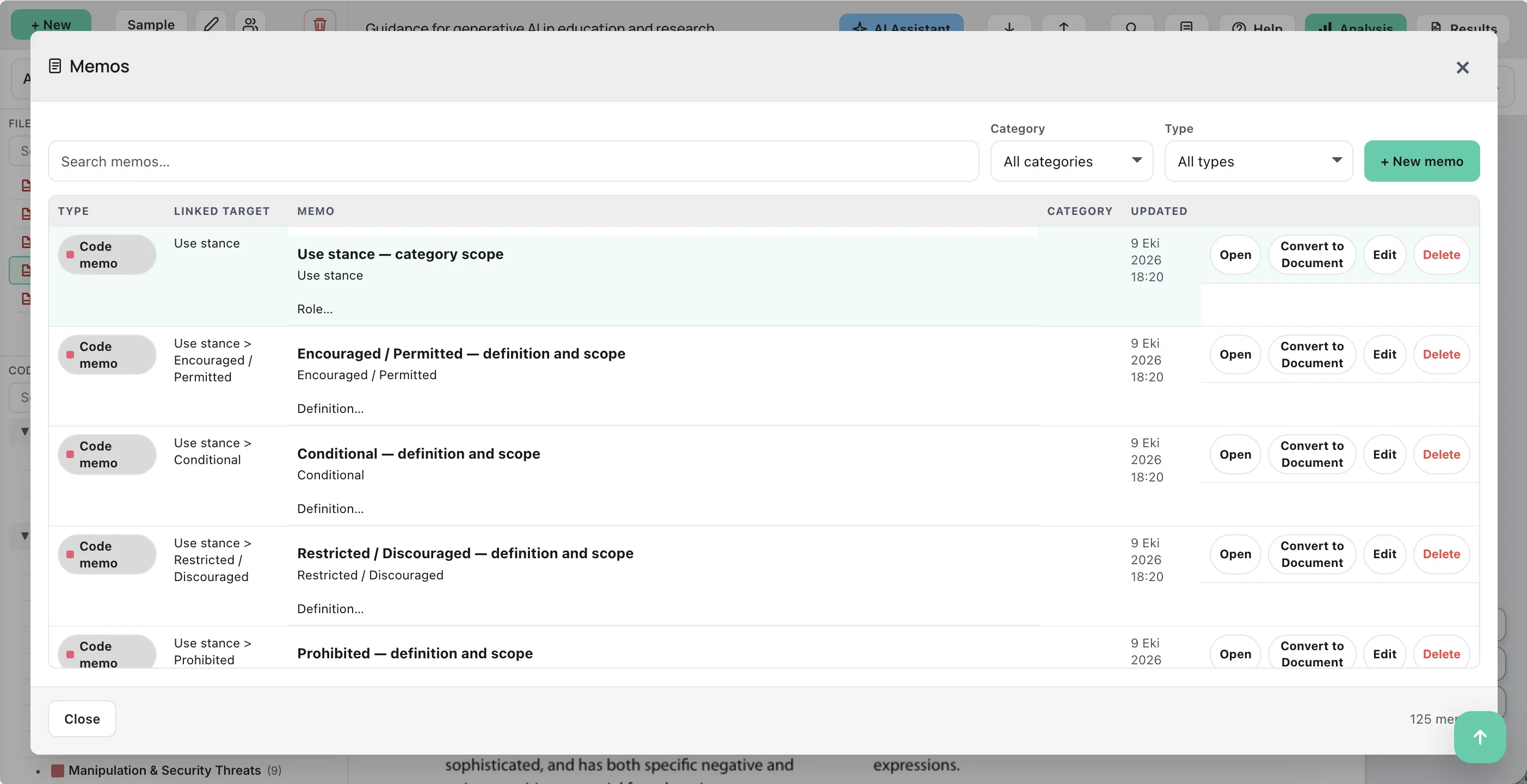
Write notes on evidence, documents, codes and projects. Search and filter memos, or convert a memo into a document.
Add participant or document characteristics, paste values from a spreadsheet, and choose how analysis treats each variable.
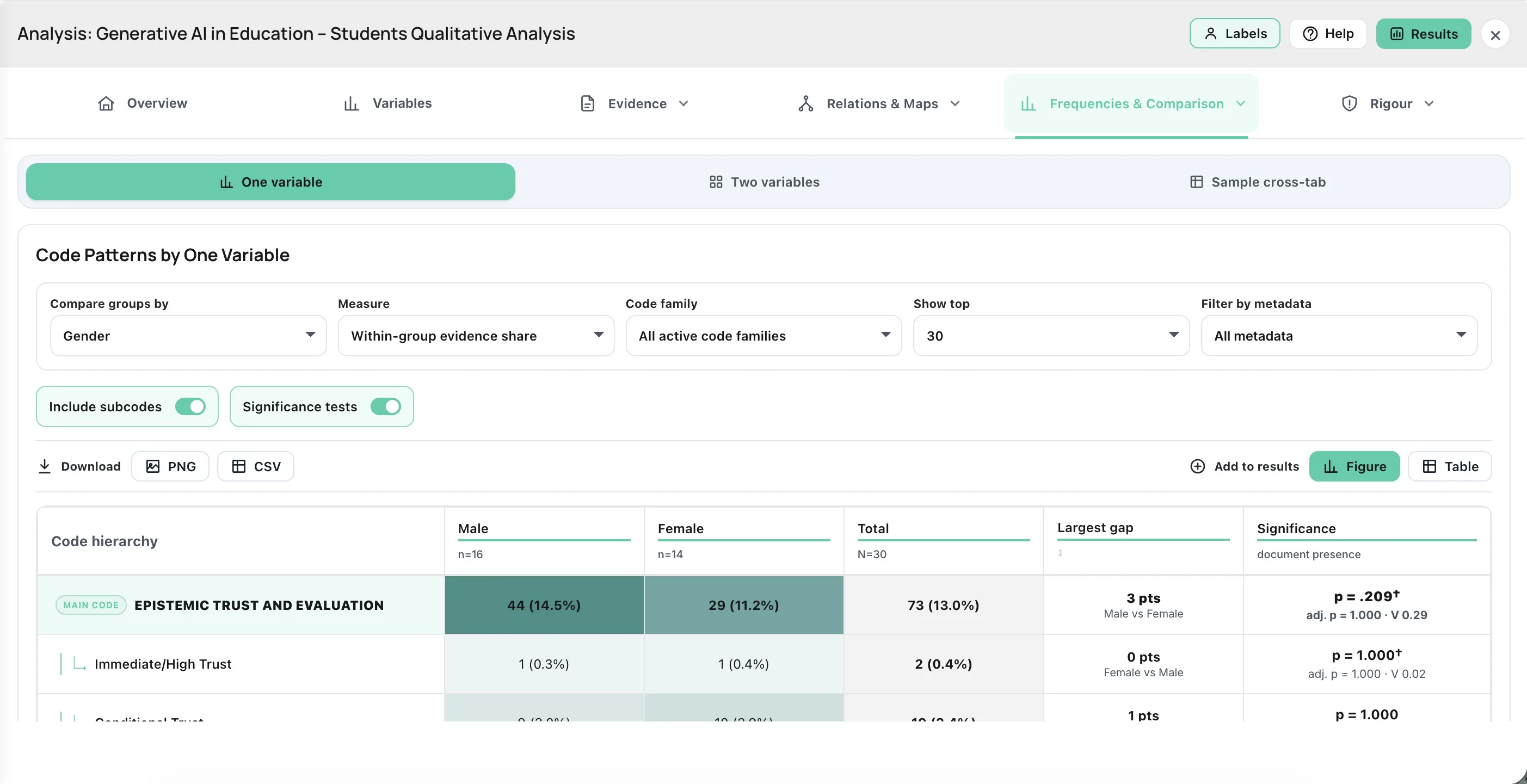
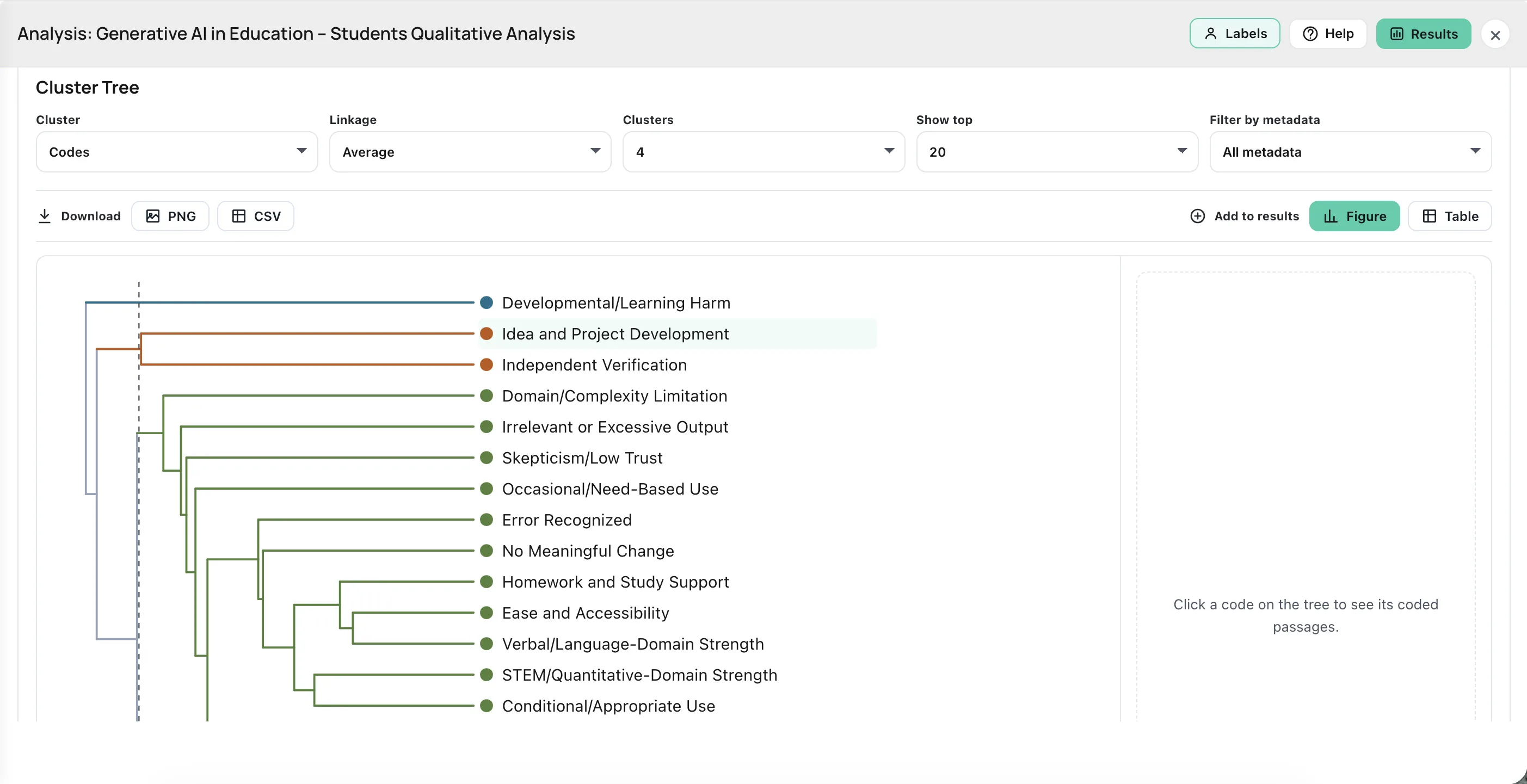
Move from where a code appears to how cases differ, which codes relate, and where the exceptions are.
Document × code matrix, code coverage and segment length show the distribution of coding across your material.
Comparative Patterns brings together views for one variable, two variables and sample cross-tabs, with supported statistical tests.
Co-occurrence, Code Adjacency, Case–Code Network, Memo Network, maps and Cluster Tree offer different ways to examine relationships.
Negative Case and Outlier Profile helps bring unusual cases into the analysis rather than focusing only on the dominant pattern.
Open the AI Assistant beside your document. Inspect suggested codes and their supporting quotations, adjust the evidence or code, and accept or reject proposals before finalizing them.
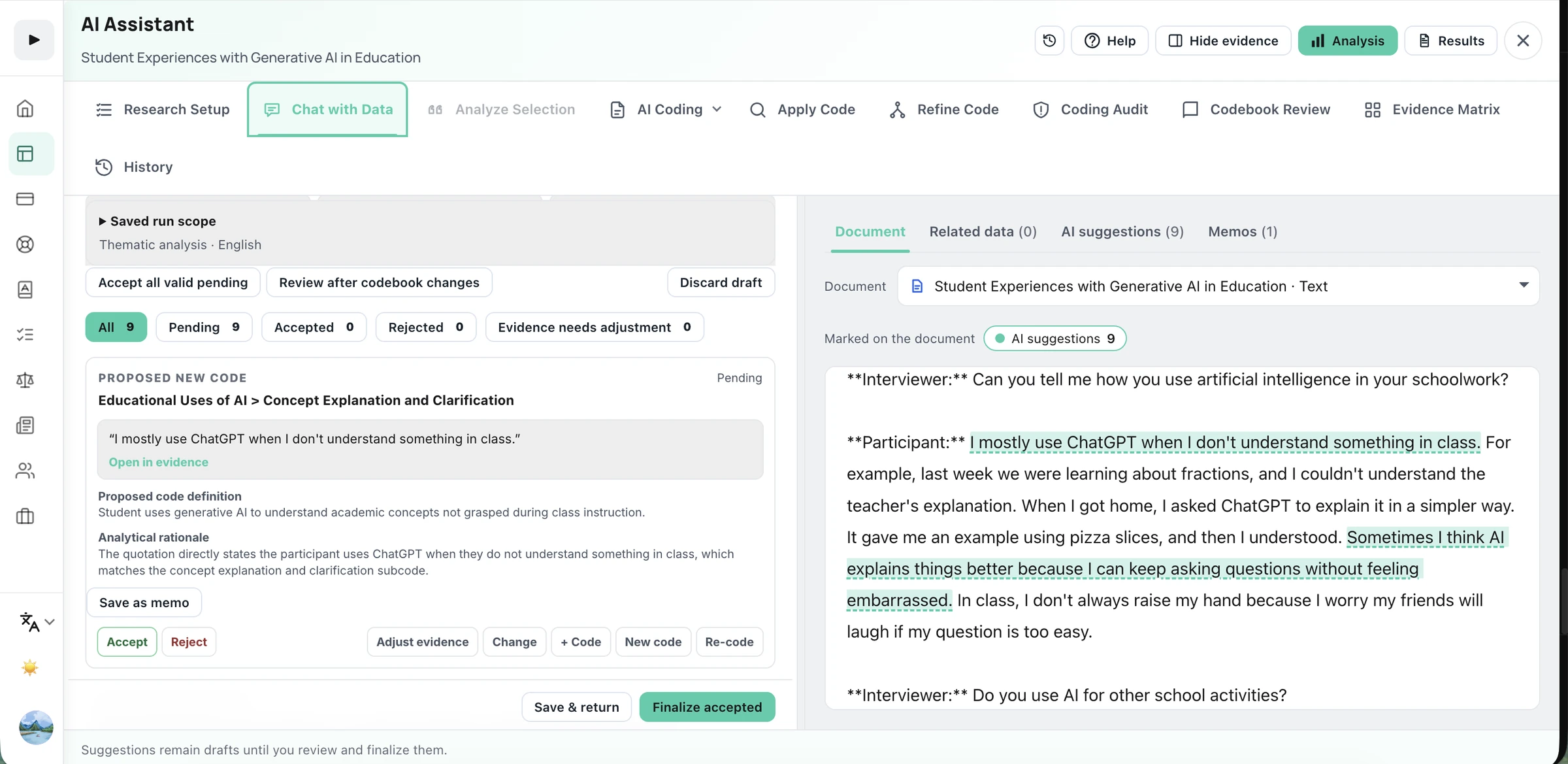
Review proposed codes, subcodes and supporting passages. Accept, adjust or reject drafts before finalizing them.
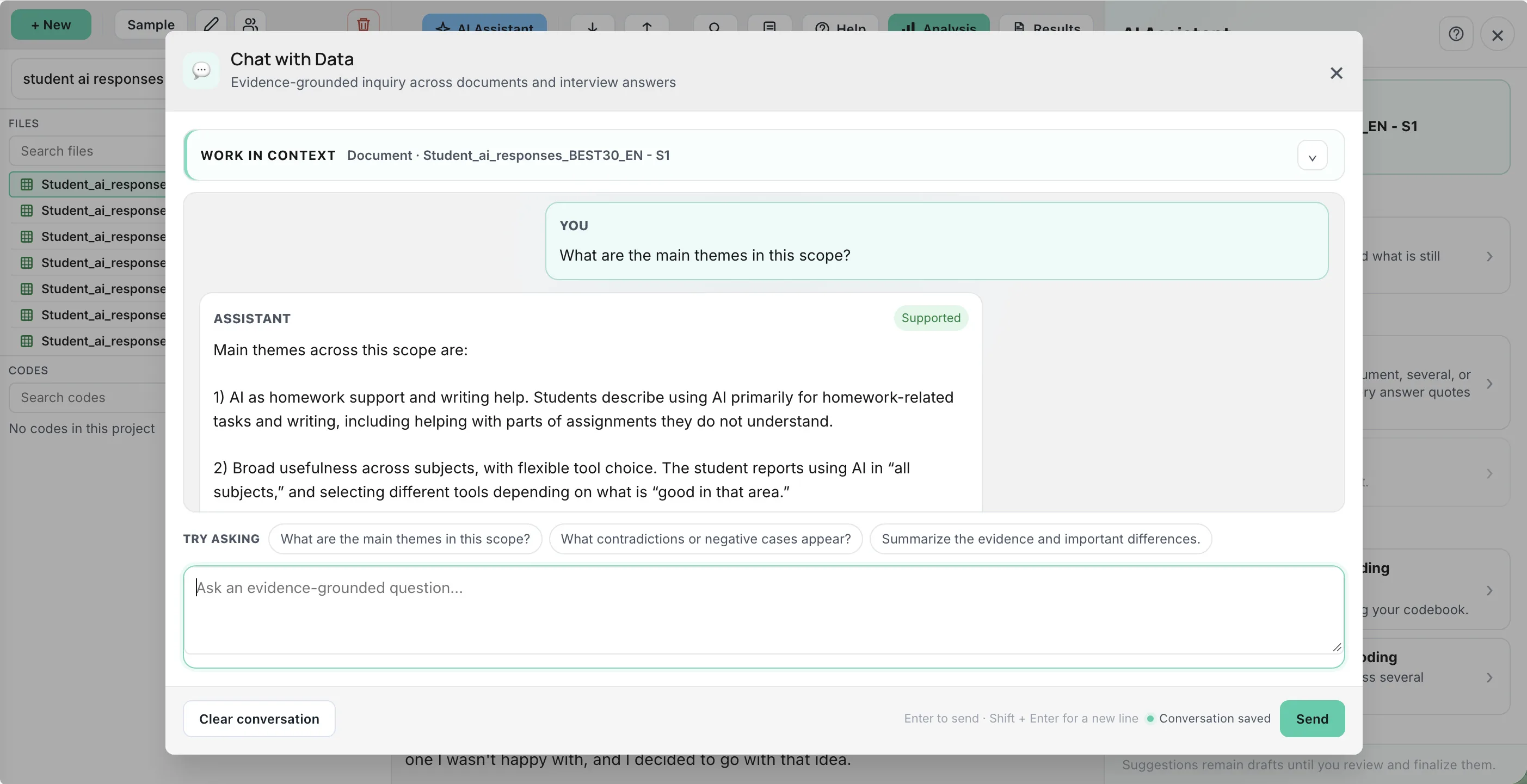
Ask about one document, selected documents or interview answers. Follow supported answers back to quoted source passages.
Use Comparative Document Coding to review answers to the same question across interviews, with AI coding proposals you can inspect and approve.
Request definition refinements, subcode drafts and coding audits; review each proposal before applying changes.
Set AI output language independently of the source and interface.
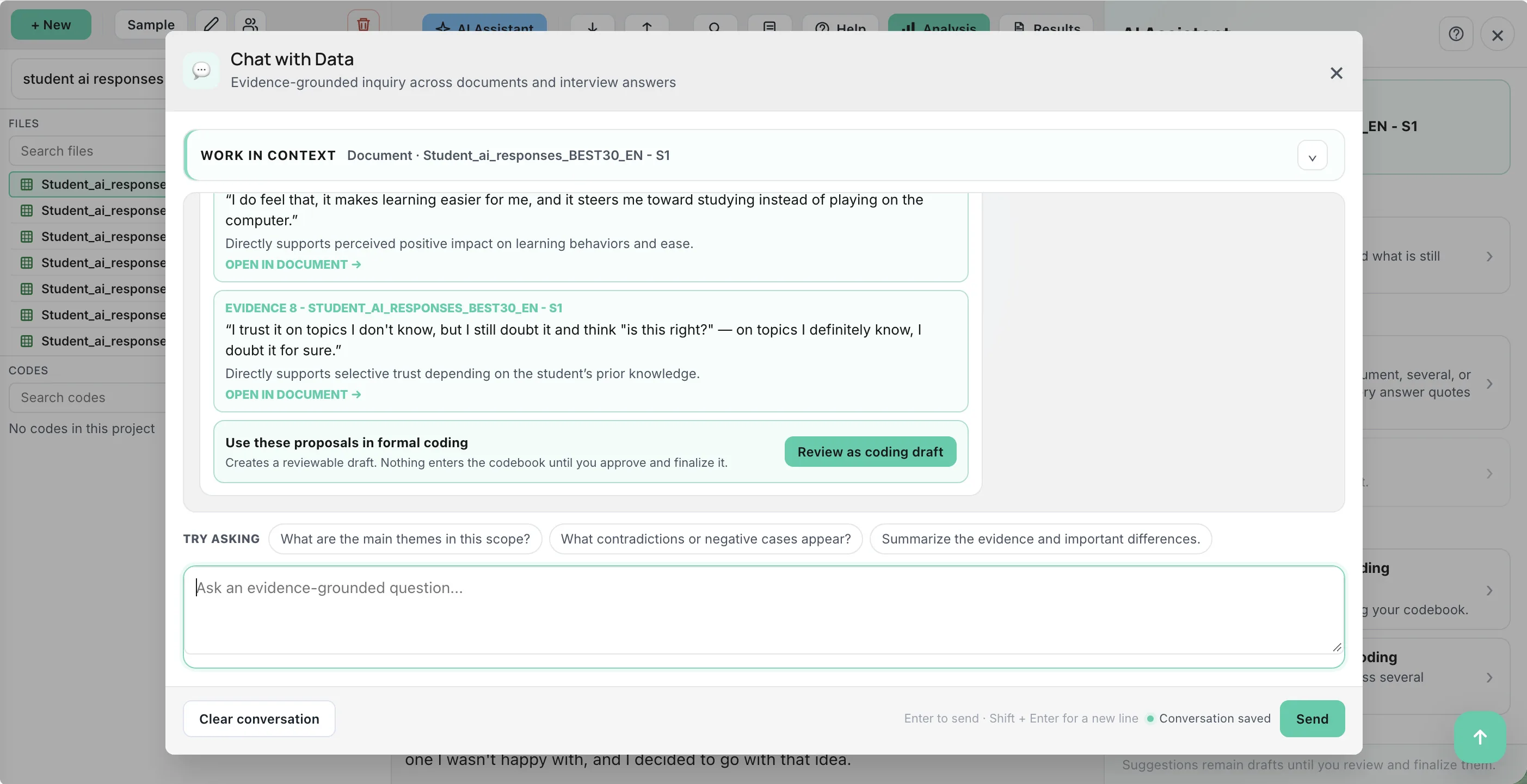
Chat with Data answers questions within your selected scope. Inspect the response and follow its supporting quotations back to the document.
Review the quoted passages behind an answer. When useful, turn proposals into a coding draft for a separate review before finalizing.
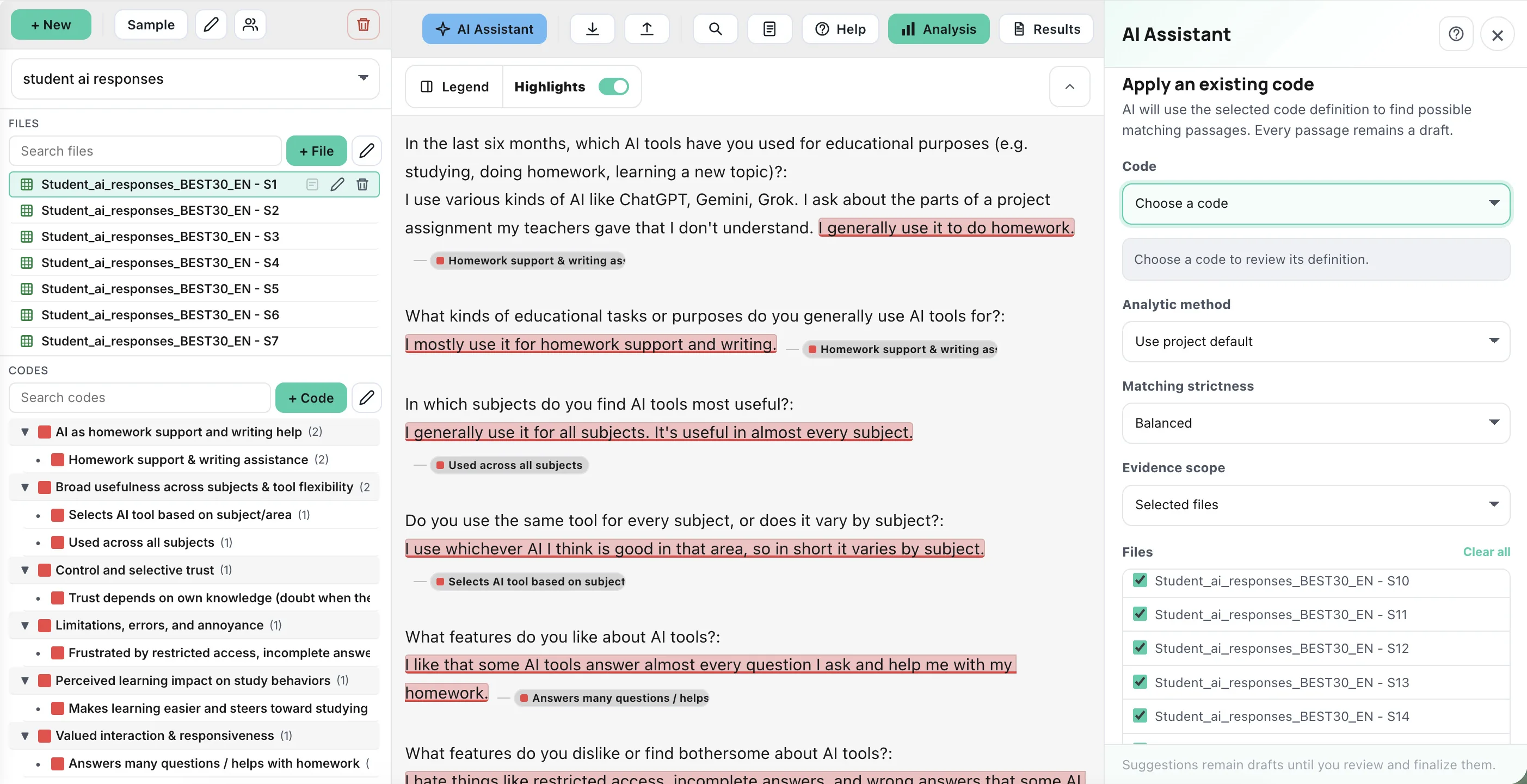
Apply an existing code using its definition, choose files and matching strictness, and optionally use earlier review decisions as guidance.
Smaller tools that keep your analysis, your notes and your report connected.
Make a table of your own summaries, one row per file and one column per code, with the coded passages beside each cell. Add it to your results as a table.
Frequencies, coverage and code pairs count text, PDF and image regions, audio and video ranges, and video frames together. Measures that only make sense for text say so.
See your study aim, the mix of your sources, where you stopped coding and the recent changes of each contributor, in one place.
Try an eight-step tour on a sample project. It uses no AI credits and does not touch your own projects.
Draft a Methods section from your project data and the details you recorded. Anything you did not record is left out, and a few details can be suggested from facts already in your project, for you to accept or skip.
Choose which variables name each source in your figures and tables, for example P7 · M · Teacher. The labels belong to the project, so everyone who opens it sees the same ones.
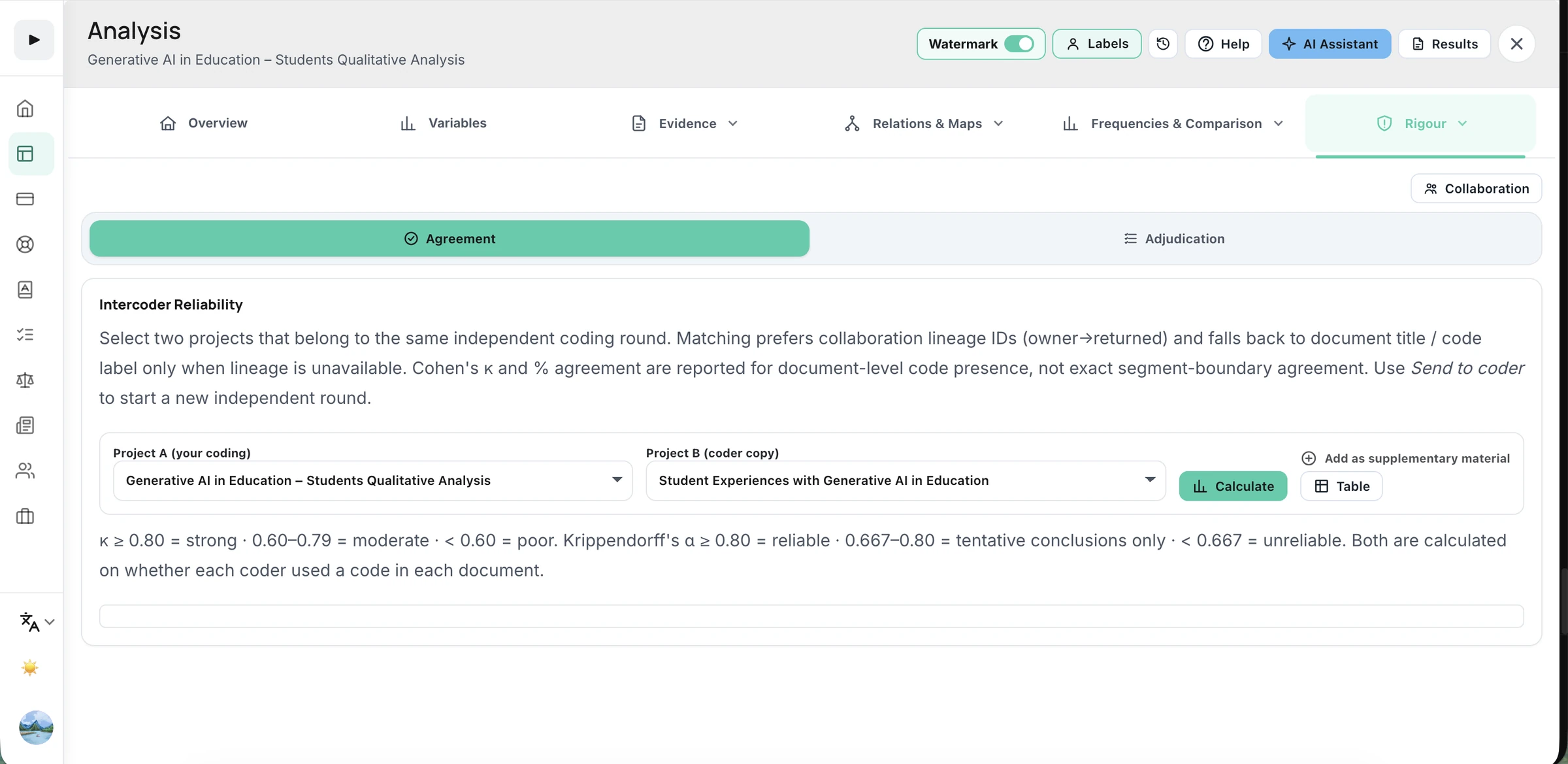
Collaborate in a shared project and document consensus in memos. For independent coding, use isolated coder copies, inspect agreement and review disagreements through adjudication.
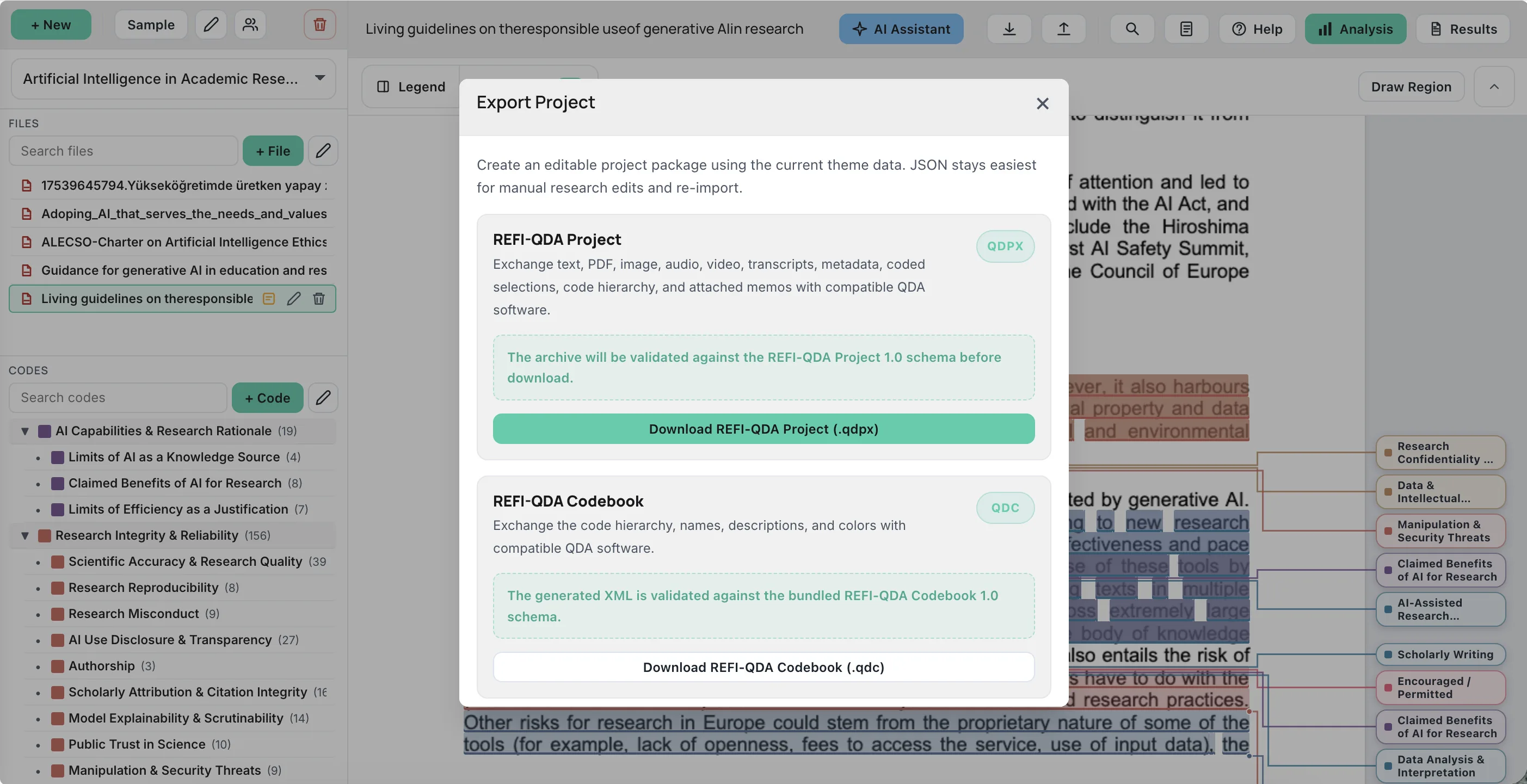
Exchange sources, coded selections, code hierarchies and standard memos through REFI-QDA .qdpx. Transfer a codebook using .qdc and inspect compatibility reports.
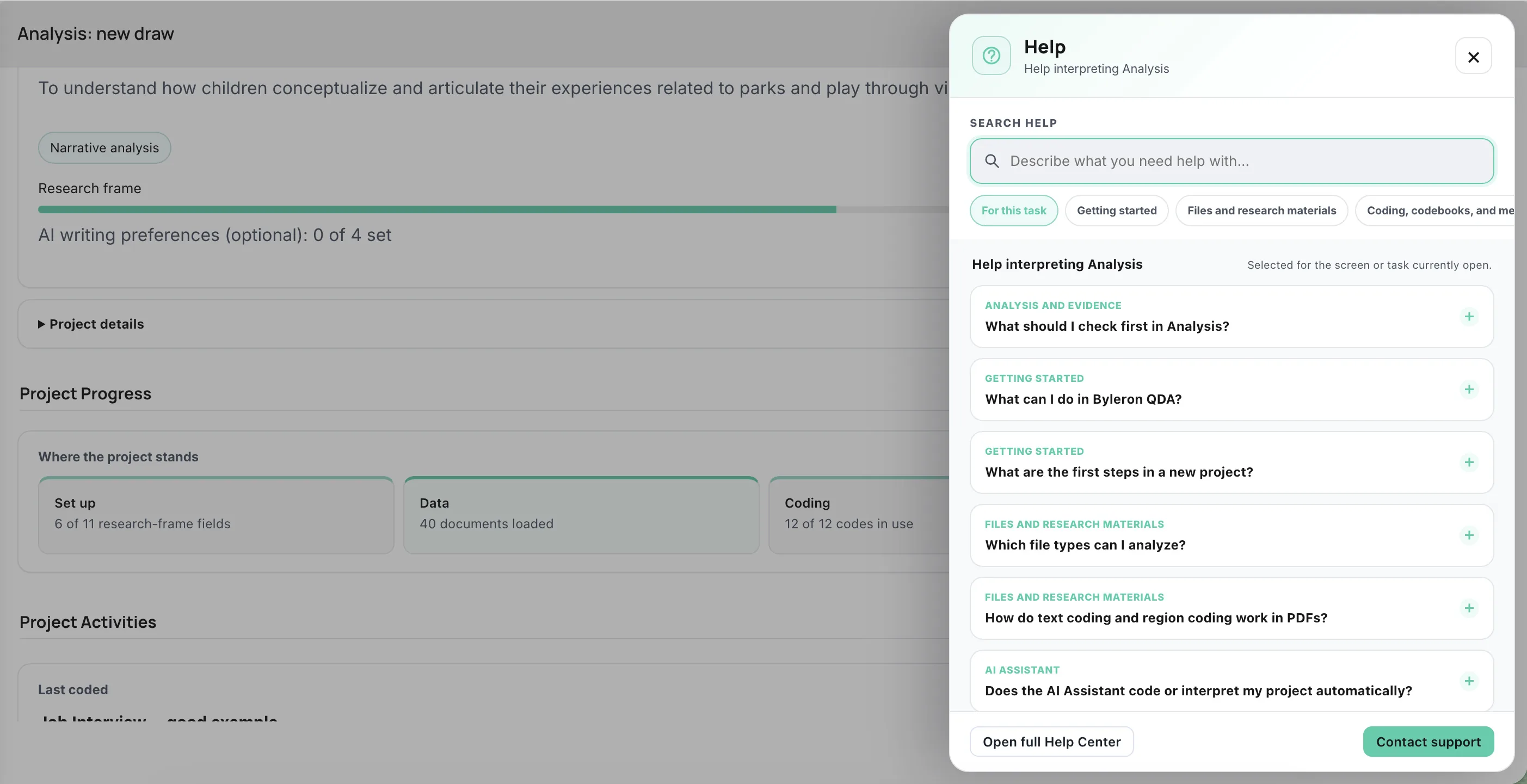
Find relevant articles for the screen you are using, search the Help Center, or contact support from the workspace.
Use English, Turkish, Spanish, French, German, Italian or Portuguese for the interface. Set source and AI writing languages independently; your research material keeps its original wording.
Use the coding, memo and comparison tools to support the approach you choose for your study.
Develop and refine codes, group them into themes, and use memos and source passages to build your interpretation.
Define categories and inclusion criteria, apply a structured codebook, and examine distributions and group differences.
Develop codes and subcodes, compare cases and coded passages, and record emerging ideas in linked analytical memos.
Connect qualitative coding with case metadata. Explore cross-tabs, comparative patterns and supported tests alongside the underlying material.
Compare Byleron QDA with NVivo, MAXQDA, ATLAS.ti and Dedoose across coding, analysis, AI assistance, collaboration and project export.
Compare featuresBring your material, coding decisions, analytical memos and results together in Byleron QDA.