
Build your project
Add research files and describe your study. Use document variables to organize cases and groups.

Code interviews, field notes, PDFs, Word documents, Excel data, images, audio and video. Use thematic analysis tools, compare cases and build results linked to your evidence.
Your codes. Your interpretation. AI assistance when you choose.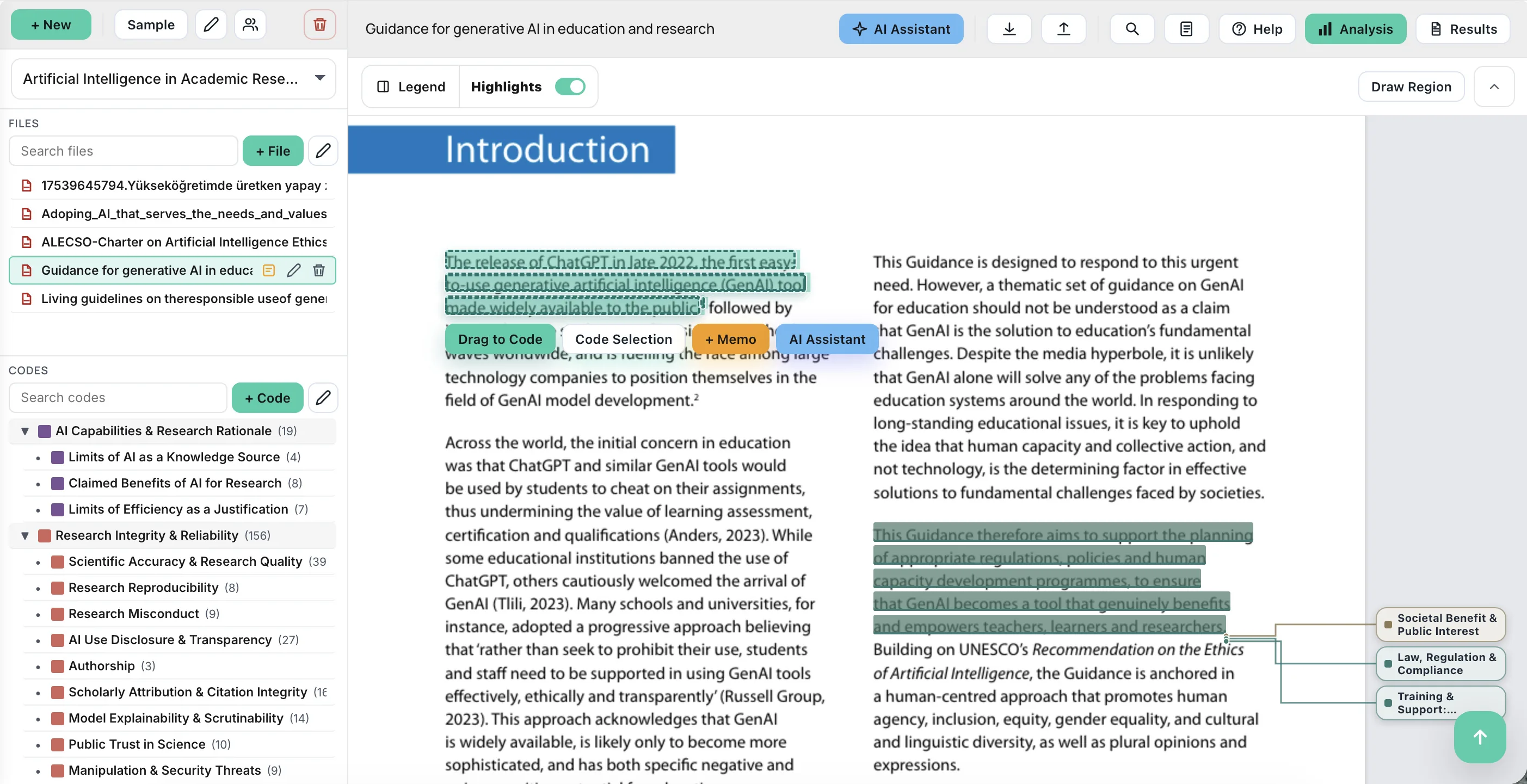
Move from reading and coding to comparison and writing, with your source material available for checking and interpretation.
Add research files and describe your study. Use document variables to organize cases and groups.
Select passages, regions or time ranges. Organize codes and record your thinking in linked memos.
Compare interview answers by question, explore code relationships and group differences, then inspect the supporting evidence.
Arrange figures, tables and supporting evidence. Edit your results document and export it to Word.
Bring text, PDFs, Word documents, Excel data, images, audio and video into one research project. Each kind of evidence keeps its own selection tools and context.
Select a screenshot to see it in detail.
Code documents, articles, interviews and field notes.
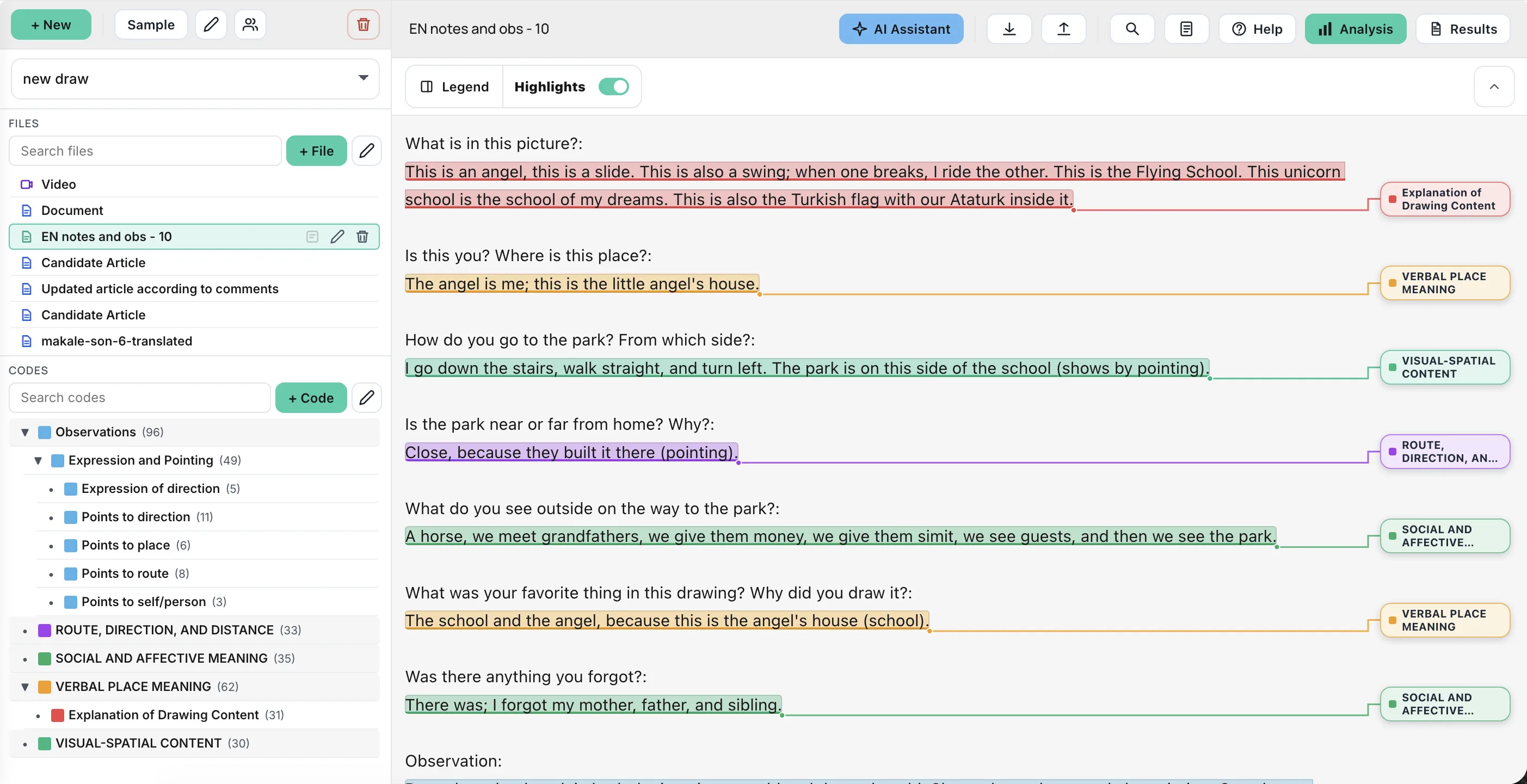
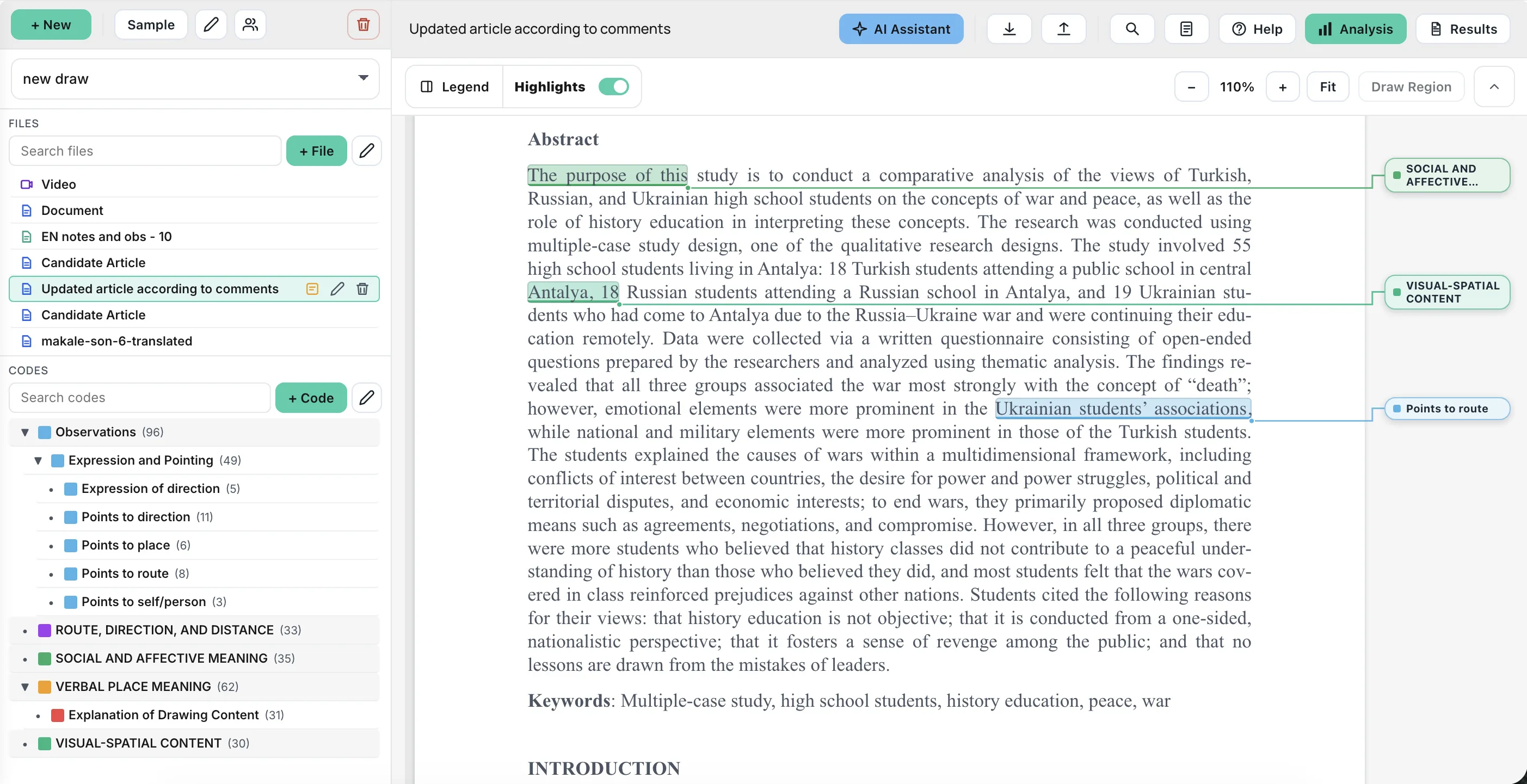
Bring spreadsheet responses into your research project.
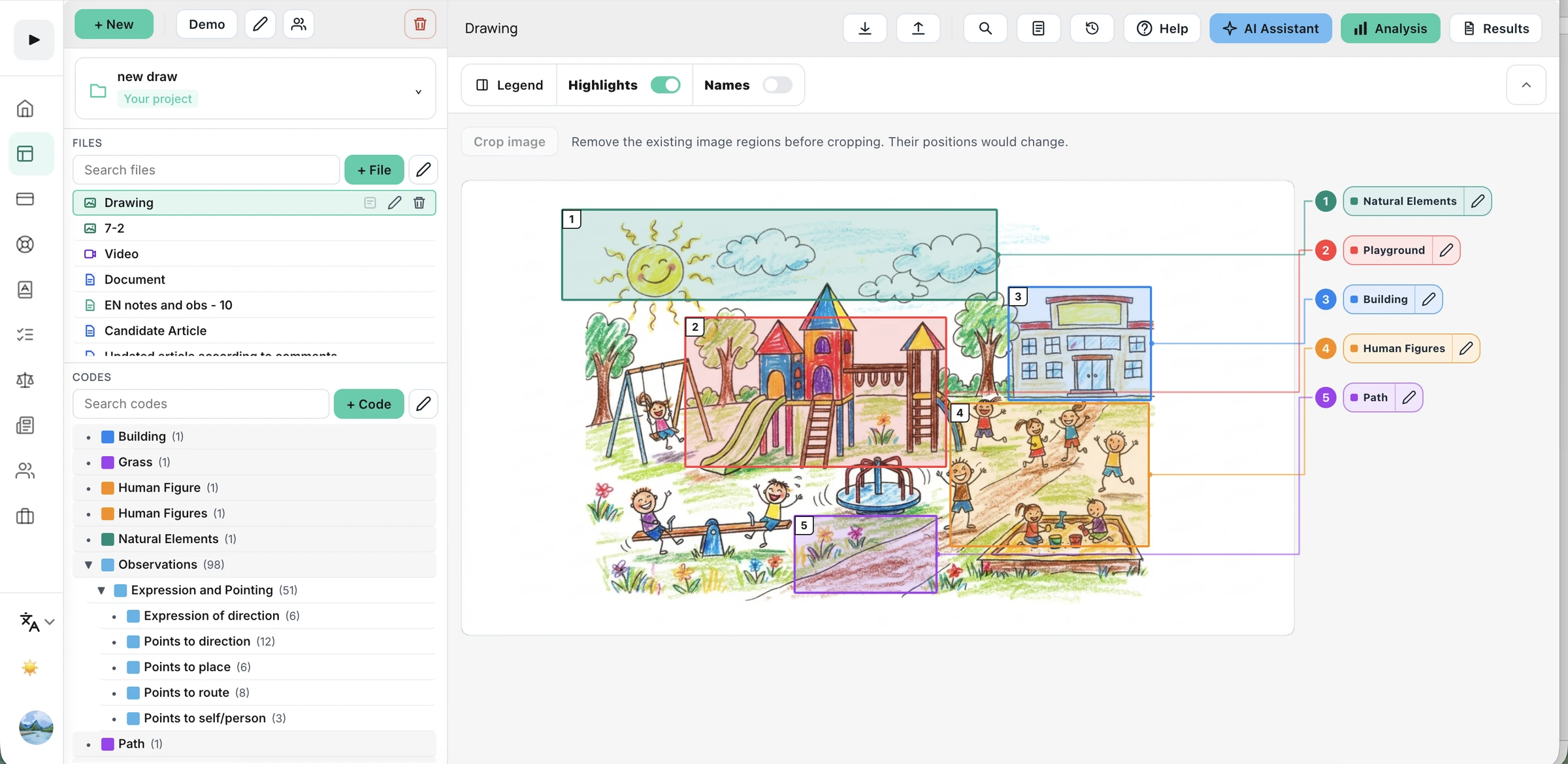
Select visual details and link them to codes and memos.
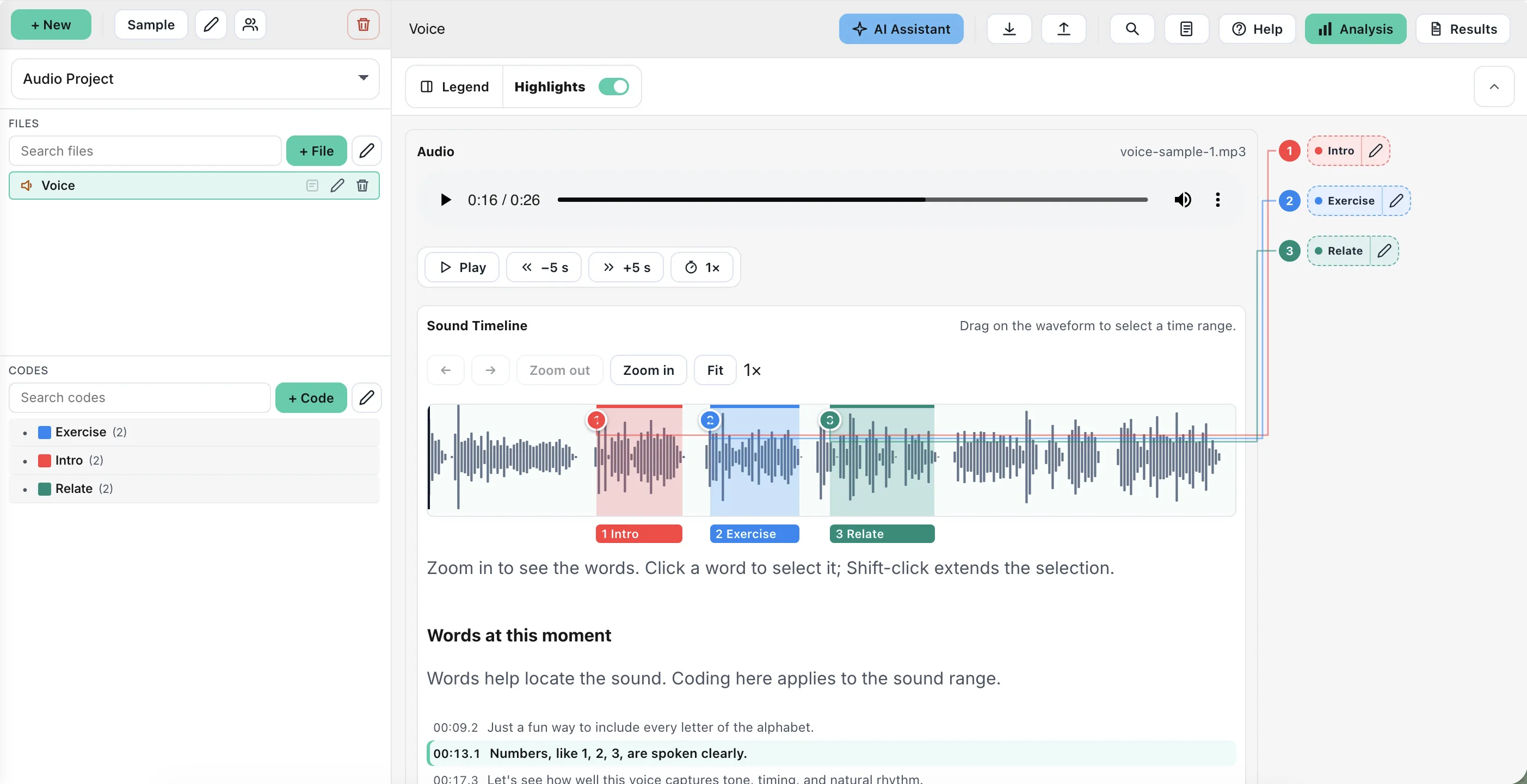
Select and replay sound ranges alongside the transcript.
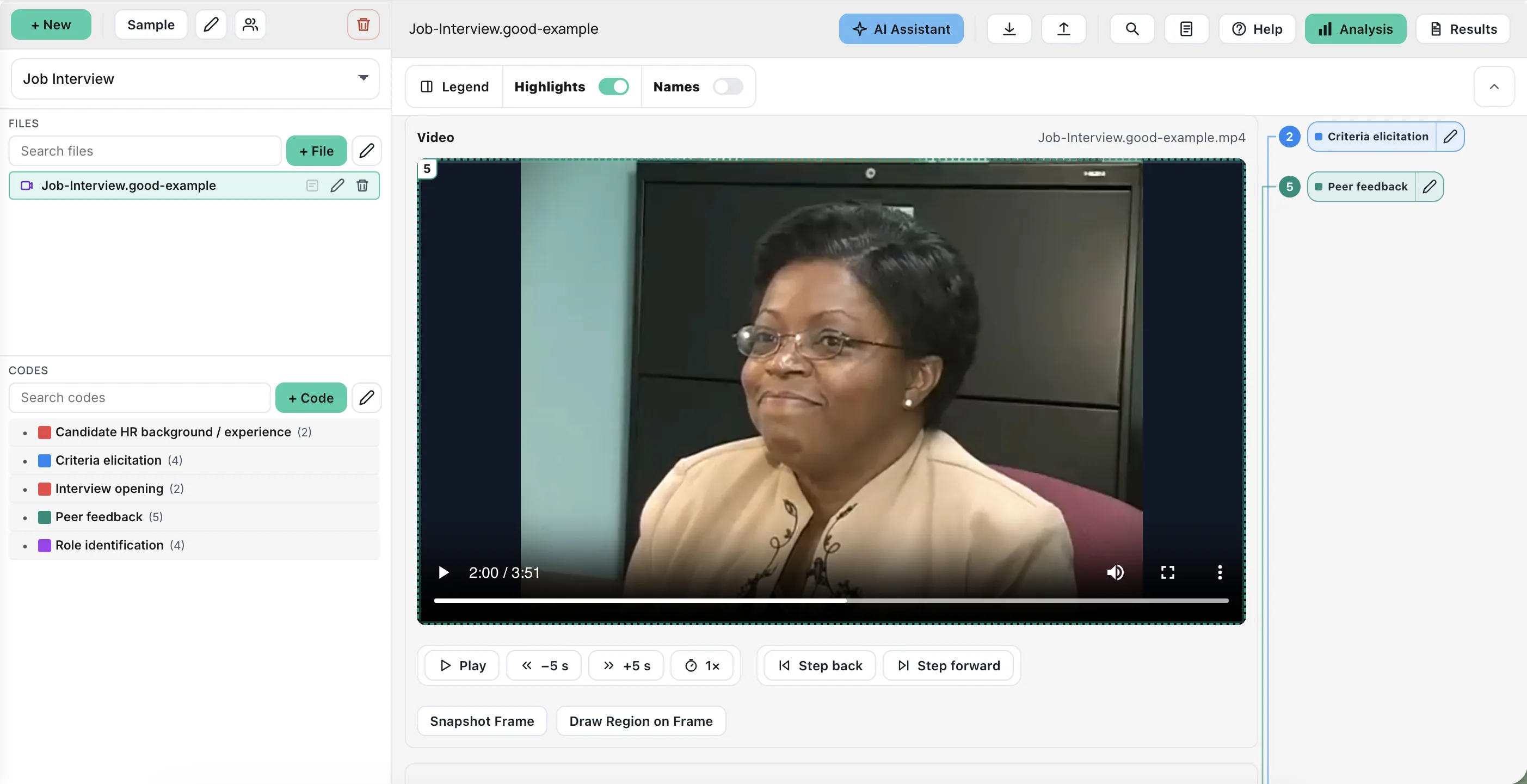
Code visual ranges, sound ranges and still frames.
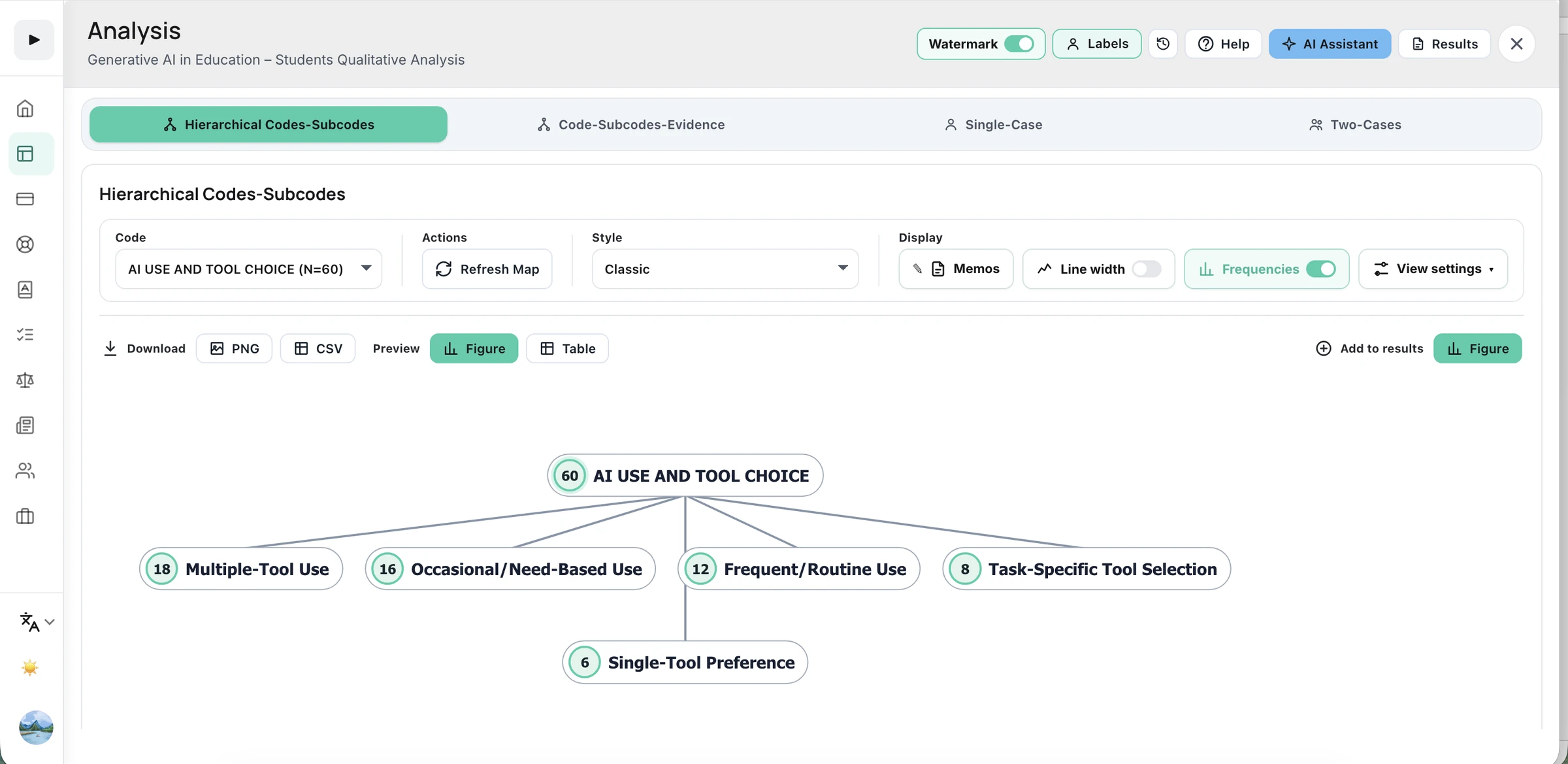
Explore maps, code frequencies and comparisons across document variables. Open the linked passages to examine similarities, differences and exceptions.
Use the analysis to support your interpretation while keeping the underlying evidence in view.
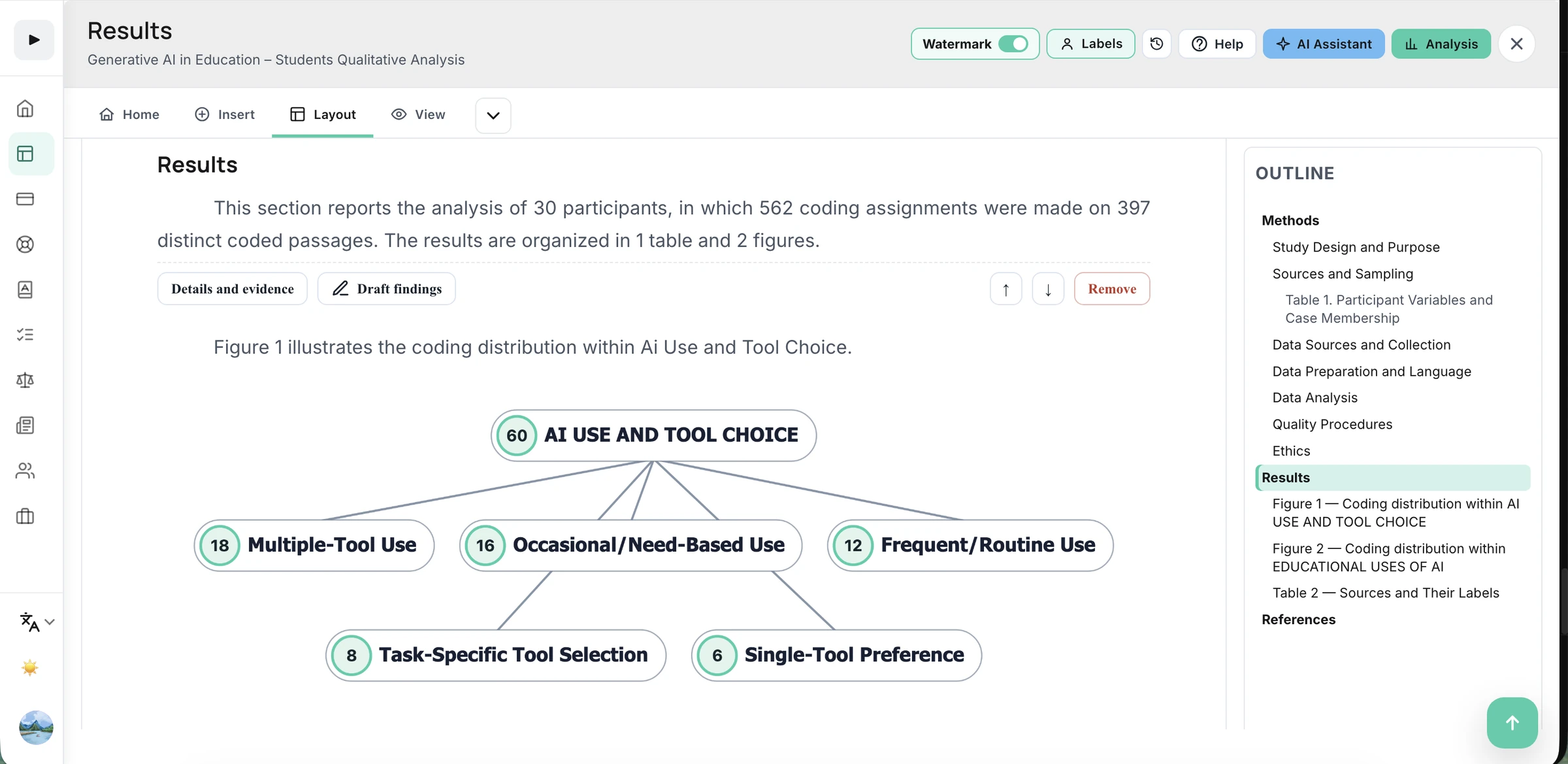
From analysis to results →Add selected figures and tables from Analysis, arrange supporting evidence, and edit the accompanying text in Results Builder.
Use the familiar document ribbon to format your work and export an editable DOCX.
Ask questions with Chat with Data, explore selected text, and get coding or codebook suggestions—all from the assistant panel.
Return to quoted sources and review proposed changes before you approve them. Use AI when it helps your research.
Explore AI assistance →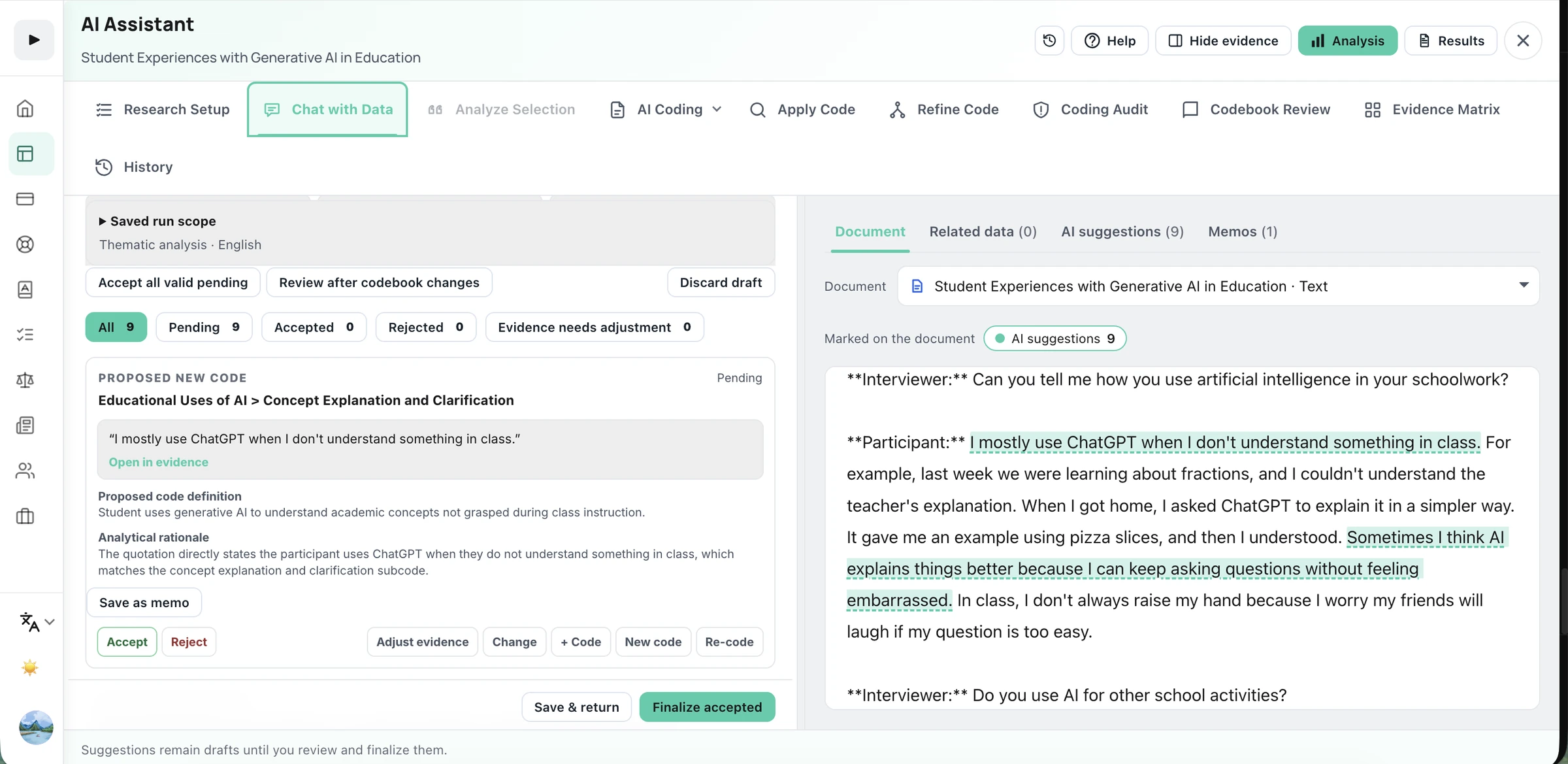
Import and export REFI-QDA projects and codebooks to exchange your research with compatible QDA software.
Work in a shared project or organize independent coding rounds, review agreement and document decisions.
Choose your interface language and set AI writing preferences for your research.
Begin with manual coding and analysis. Compare paid plans for more project capacity, AI assistance and reporting tools, or explore an institution plan for your team.
Find help relevant to your current task, search the Help Center, or contact support directly from the workspace.
A workspace for qualitative research—from the first passage you code to the findings you present.